Appearance Settings
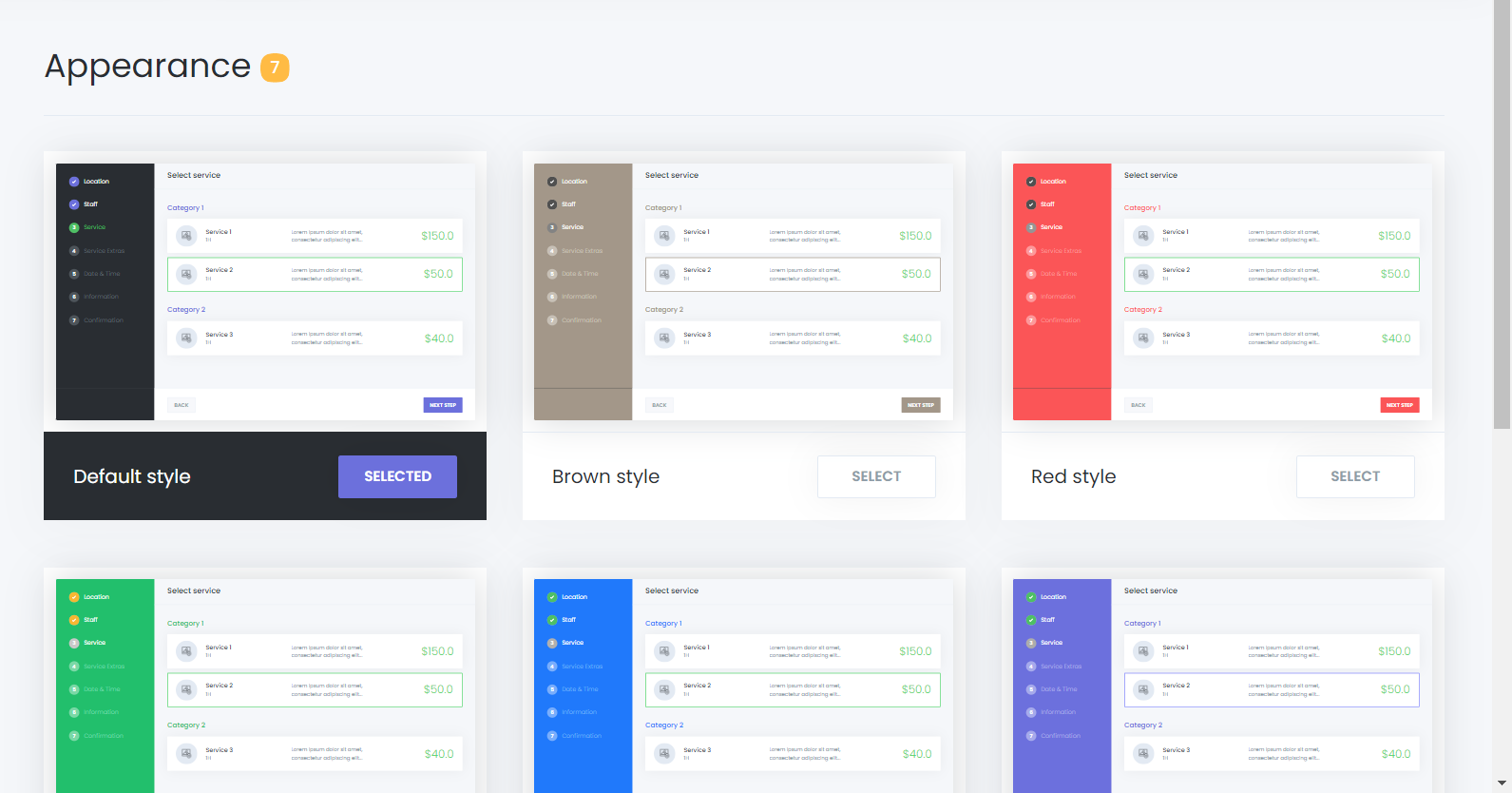
With Mysched, you can customize the front-end booking panel to reflect your business’s brand colors and style. Mysched offers seven predefined styles: Default, Brown, Red, Green, Blue, Purple, Pink. You can easily select any of these styles or create a completely new one tailored to your preferences.
Changing the Style
To change the appearance of the booking panel, navigate to the Appearance Settings section in the admin panel. You will see the list of available styles.
-
Choose one of the predefined styles by clicking the CHOOSE button next to the style.
-
The panel’s appearance will instantly update to reflect the selected style.
Creating a New Custom Style
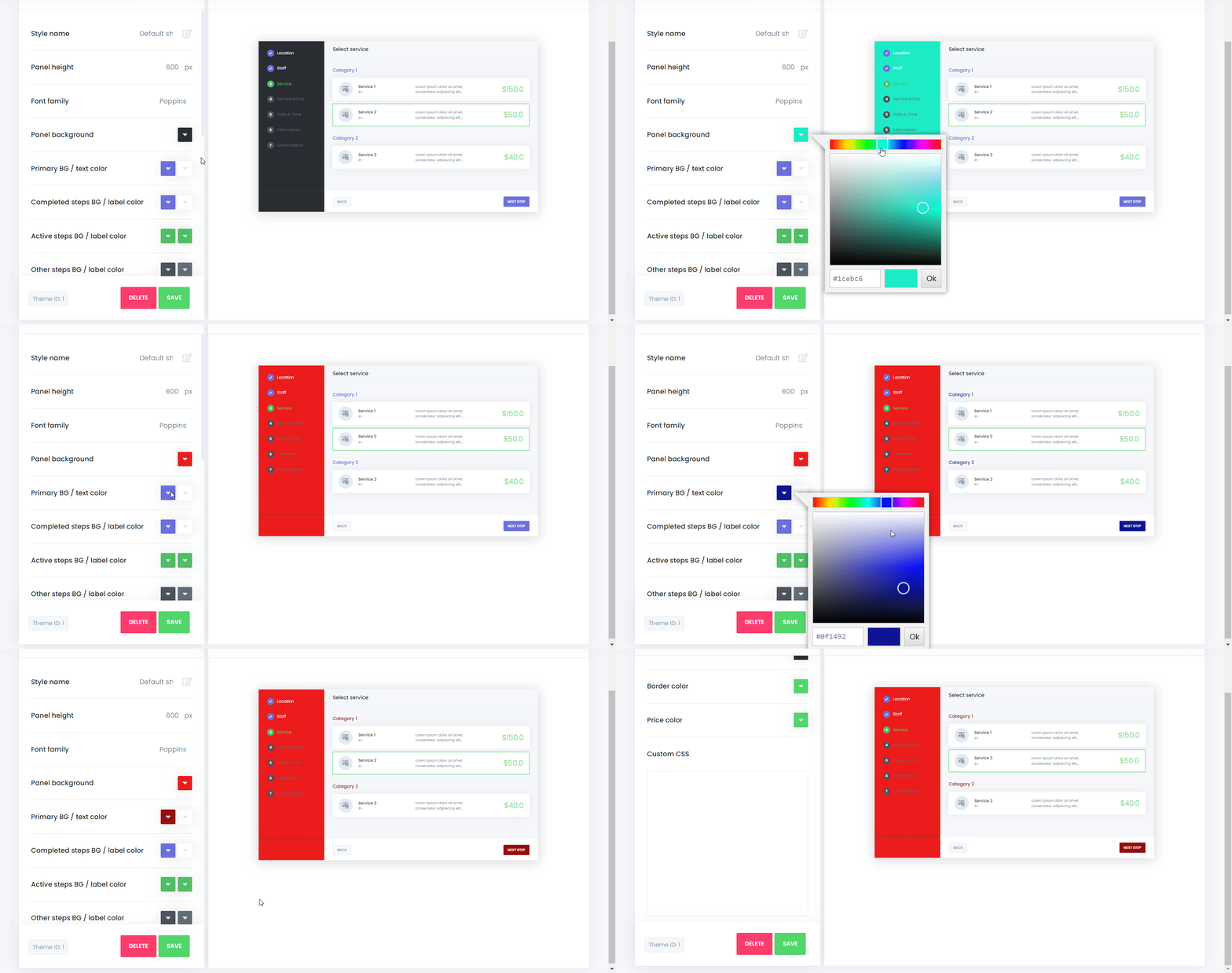
If none of the predefined styles suits your brand, you can create a custom style by clicking on the Create new style option at the bottom of the styles list.
-
In the popup panel that appears, give a name to your new style.
-
Customize the colors for different elements of the booking panel. You’ll be able to see the visual updates in real-time on the right side of the screen, making it easy to create your desired look.
-
Once you're satisfied with the colors, click the SAVE button to add the style to the list.
-
You can now select your new custom style from the list and click CHOOSE to apply it to the booking panel.
Editing an Existing Style
If you want to make changes to a style you previously created:
- Find the style in the list.
- Click on the style to open the Edit panel.
- Make your desired changes and then click SAVE to update the style.
Deleting a Style
To delete a custom style, follow these steps:
-
Find the style you want to delete and click on it.
-
In the Edit panel, scroll down and click the DELETE button at the bottom of the panel.
Note: You cannot delete the currently active style. To delete a style, first switch to a different style, and then delete the one you want.
By using the Appearance Settings in Mysched, you can easily ensure that the booking panel matches the branding of your business, providing a cohesive and professional look for your customers.