Appointments Menu
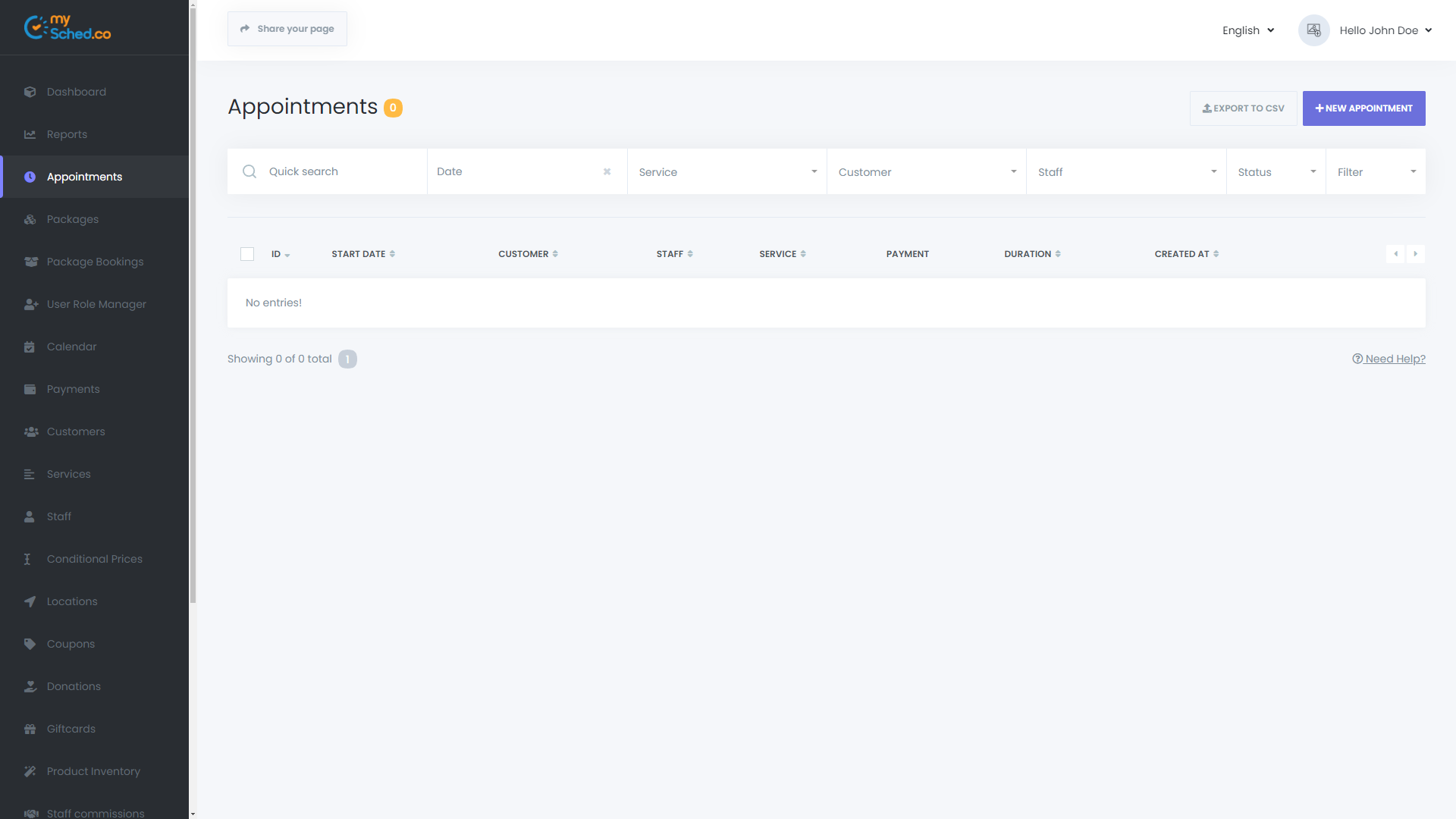
The Appointments menu provides a comprehensive view of all appointments. You can effortlessly search for specific appointments using the robust search tool and apply various filters. The list can be sorted in ascending (ASC) or descending (DESC) order across all columns.
Managing Appointments
To modify an appointment:
- Click on the options beside the appointment and select Edit or Delete.
- Bulk delete appointments by selecting multiple entries and clicking the delete button at the bottom.
Payment Details
Click on the payment icon within the PAYMENT column to view detailed payment information. Here, you can adjust the payment price or status as necessary.
Creating New Appointments
To schedule a new appointment, click the NEW APPOINTMENT button.
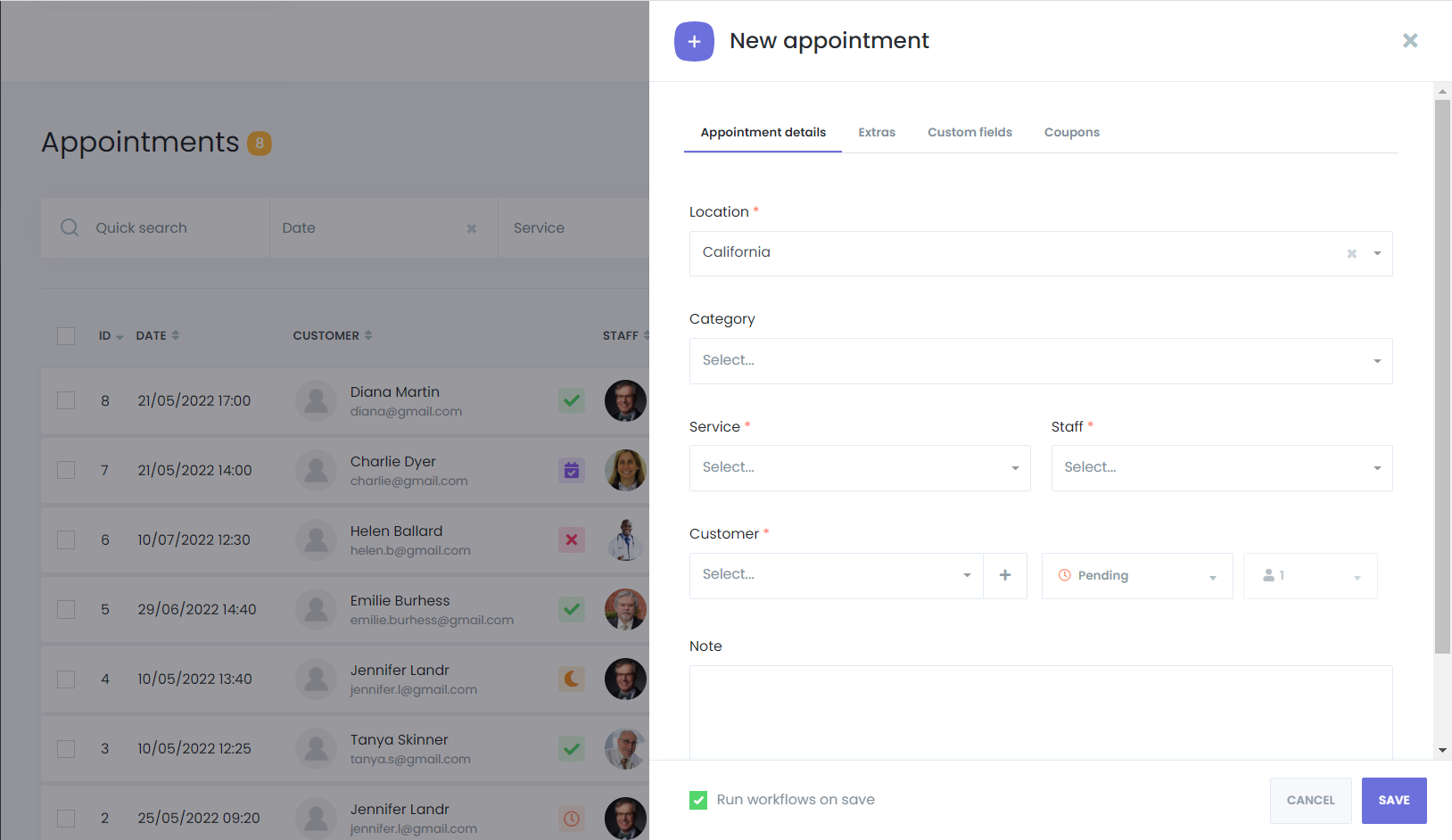
In the New Appointment window, you'll select all necessary details:
- Appointments respect the Timesheet, acknowledging holidays and special days. For instance, if Sunday is marked as a holiday, no timeslots will be available.
- If the service capacity is set to "Group," multiple customers can book the same timeslot. Individual slots can be added from the admin panel, deducting from the total service capacity.
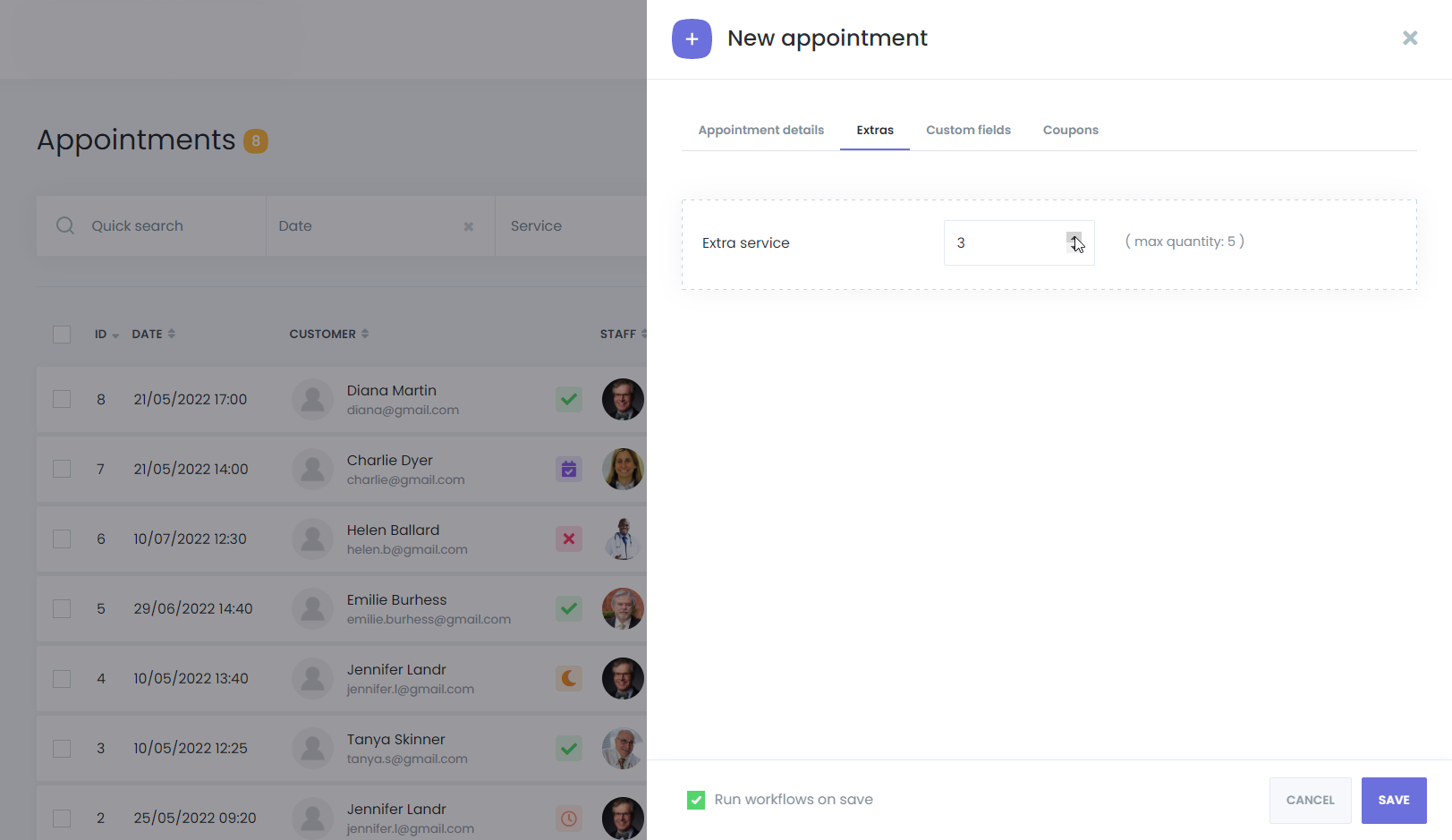
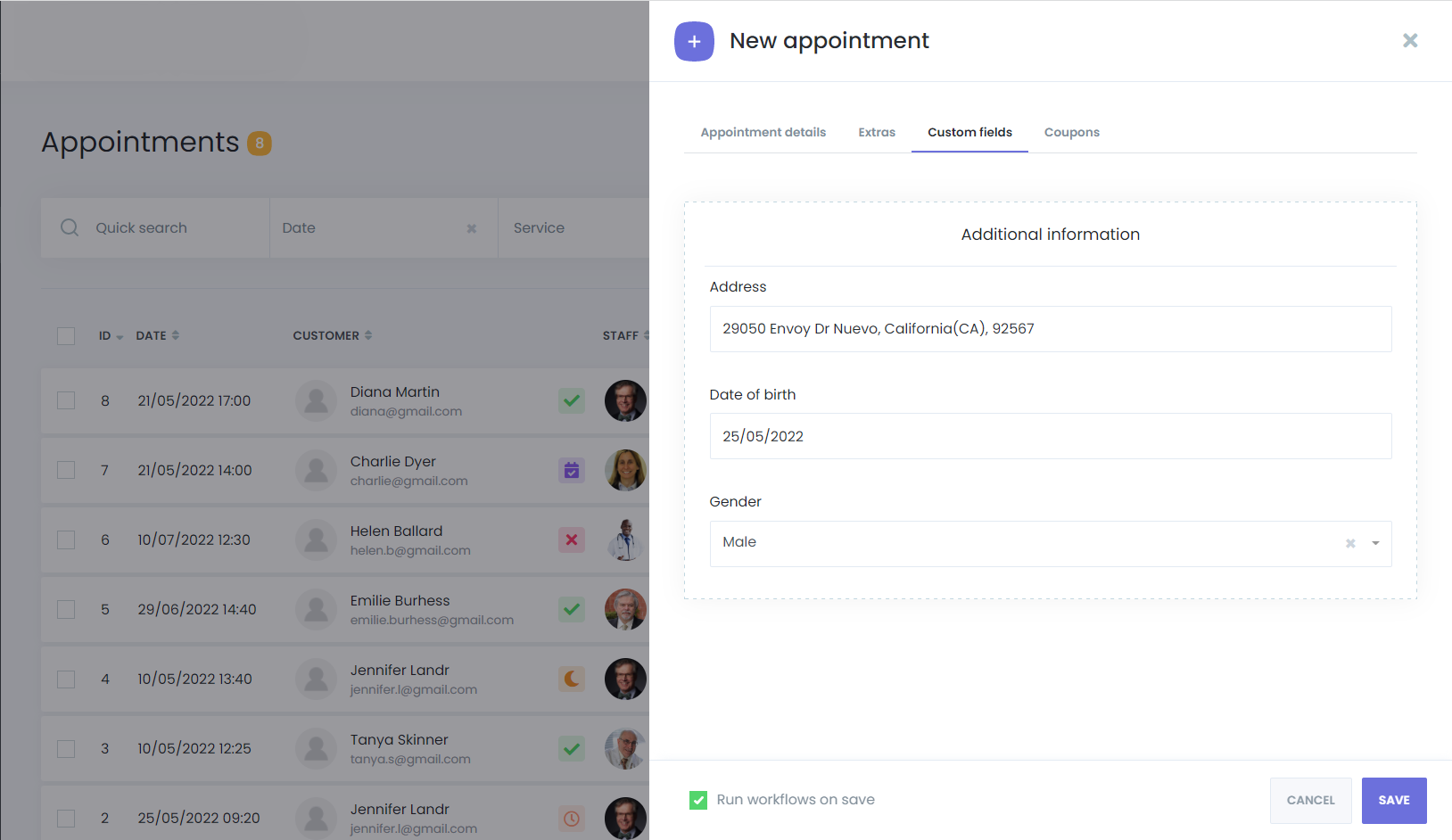
Adding Extras and Custom Forms
- Select additional service features under the Extras tab.
- Include custom information through the Custom Forms feature during manual appointment setup.
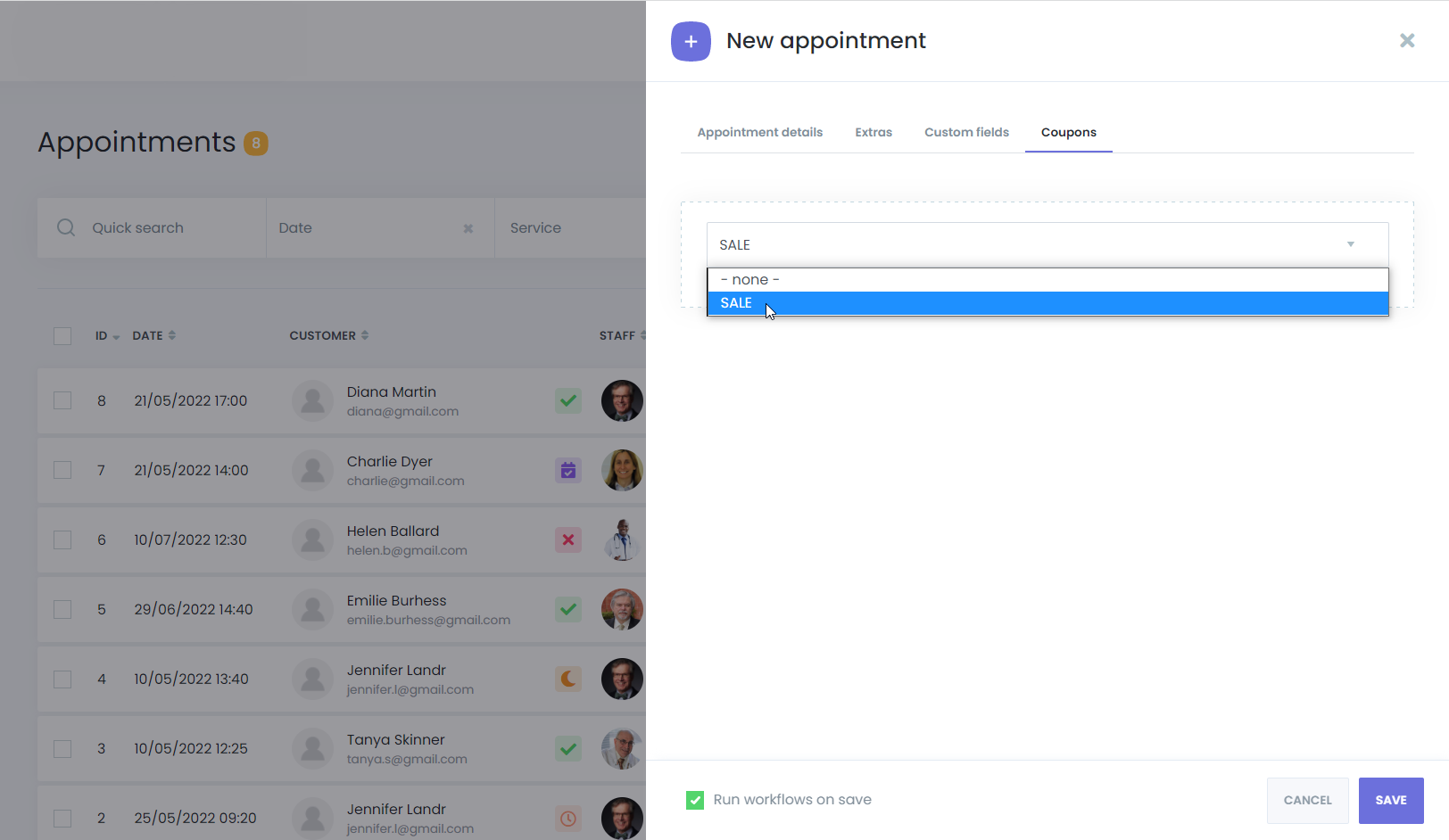
Applying Coupons
Coupons can be applied directly from the admin panel during the creation of a manual appointment.
Notifications
To ensure customers receive notifications about manual changes:
- Activate the "Run workflows on save" checkbox. If unchecked, no notifications will be sent.
Recurring Appointments
Monthly Recurring Appointments
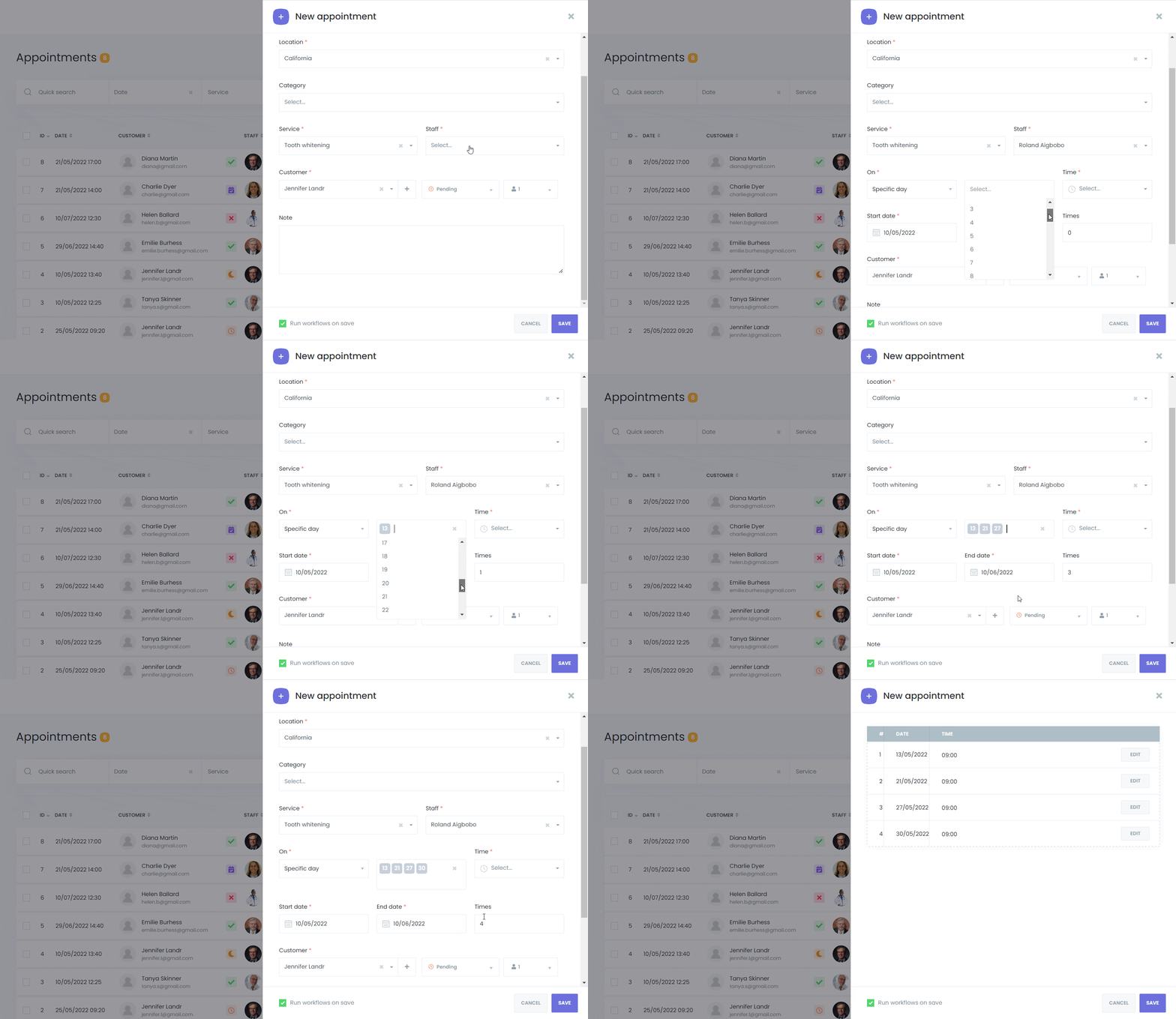
For services recurring on specific days each month:
- Choose Monthly to let customers pick specific calendar days or days like "first Sunday" of each month.
- Use the Specific day option for dates like the 5th, 10th, and 15th each month. Set start and end dates, or let the system calculate the end date based on the number of occurrences.
Weekly and Daily Recurring Appointments
For weekly patterns:
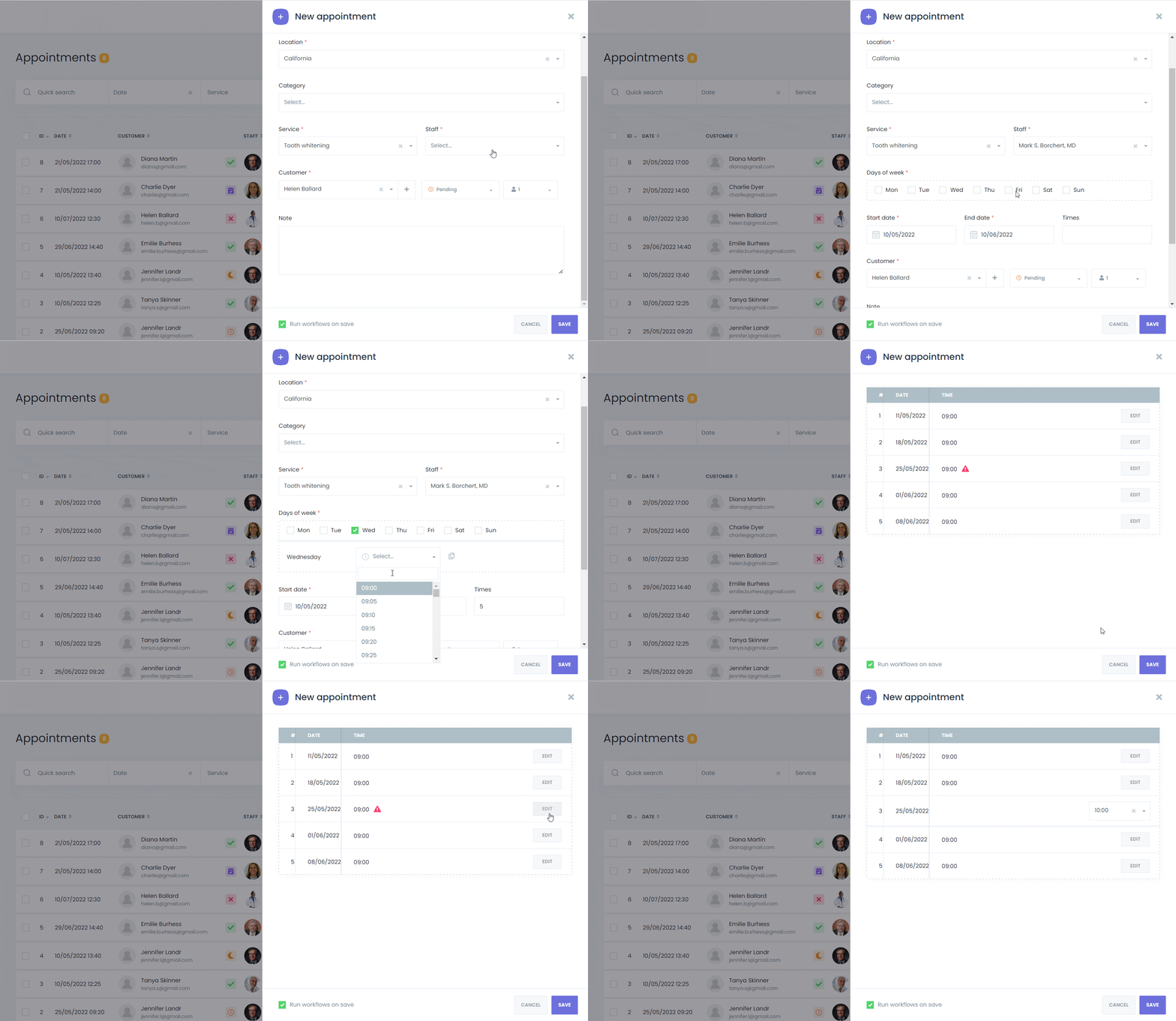
- Select the weekdays and set the start times for each.
For daily patterns:
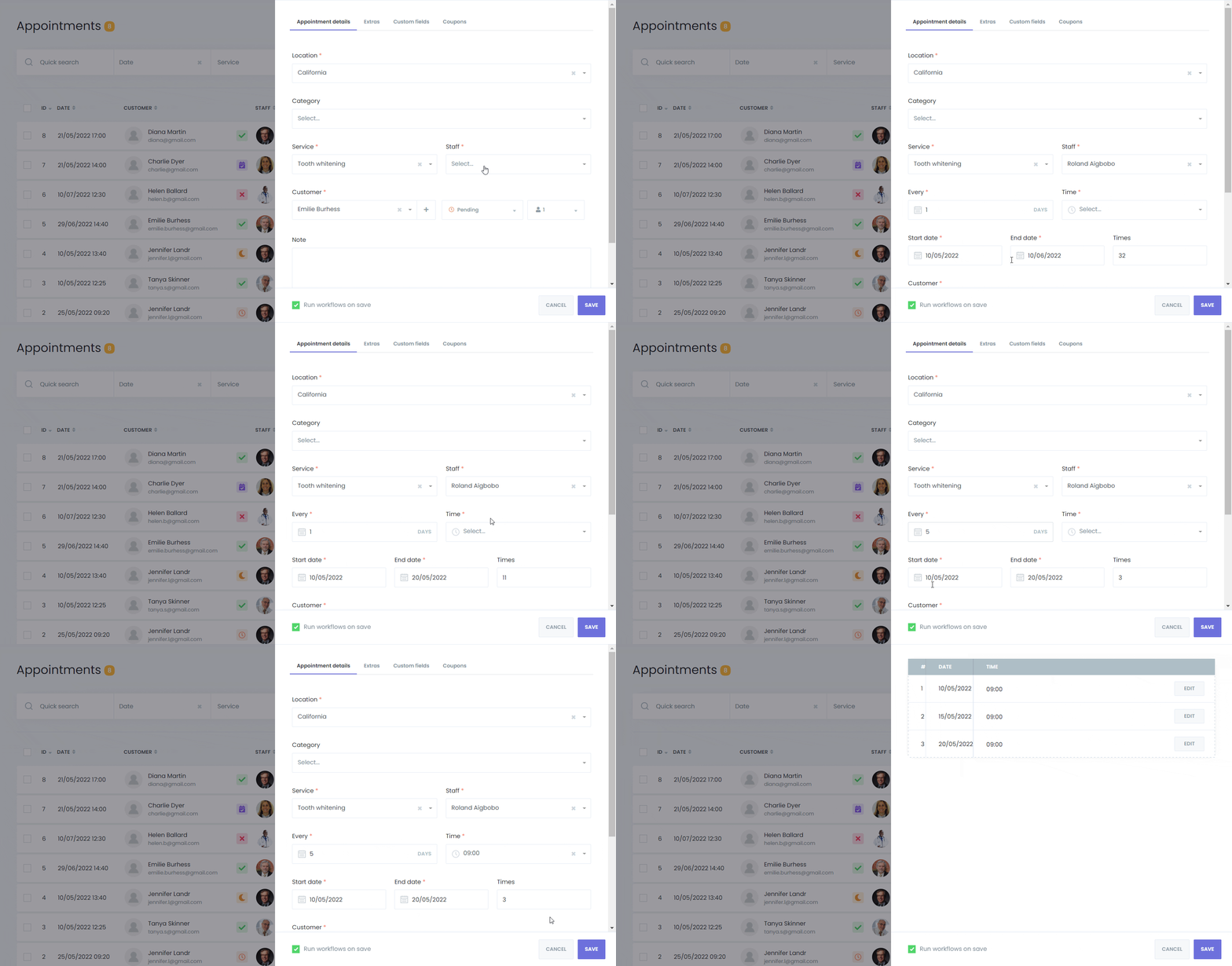
- Determine the frequency of repetition, such as every day or every two days. Set the time, start date, end date, and total occurrences.
This guide ensures that you can efficiently manage and schedule appointments through the mysched platform, enhancing both user and customer experience.