Mollie Payment Integration
The Mollie Payment Integration in Mysched enables you to securely accept payments from your clients using the Mollie payment gateway. Mollie is a widely used platform that supports various payment methods, including credit cards, bank transfers, and local payment options, depending on the region of your customers.
This guide will help you integrate Mollie with Mysched step by step to start receiving payments smoothly.
Steps to Set Up Mollie Integration
Step 1: Create a Mollie Account
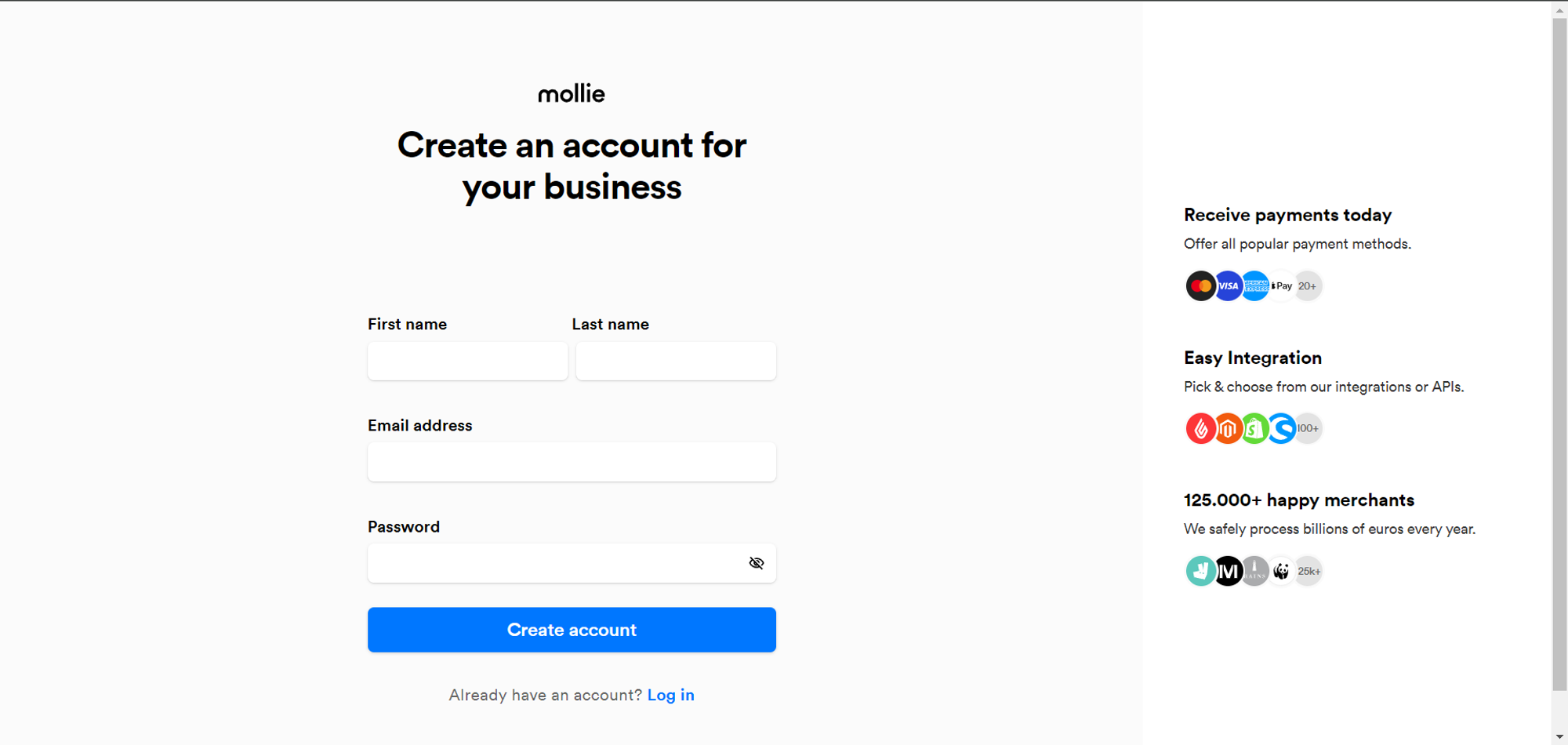
To begin, go to the Mollie Signup Page, and fill out the necessary details to create your account. After entering the required information, press the Create account button.
Step 2: Verify Your Email
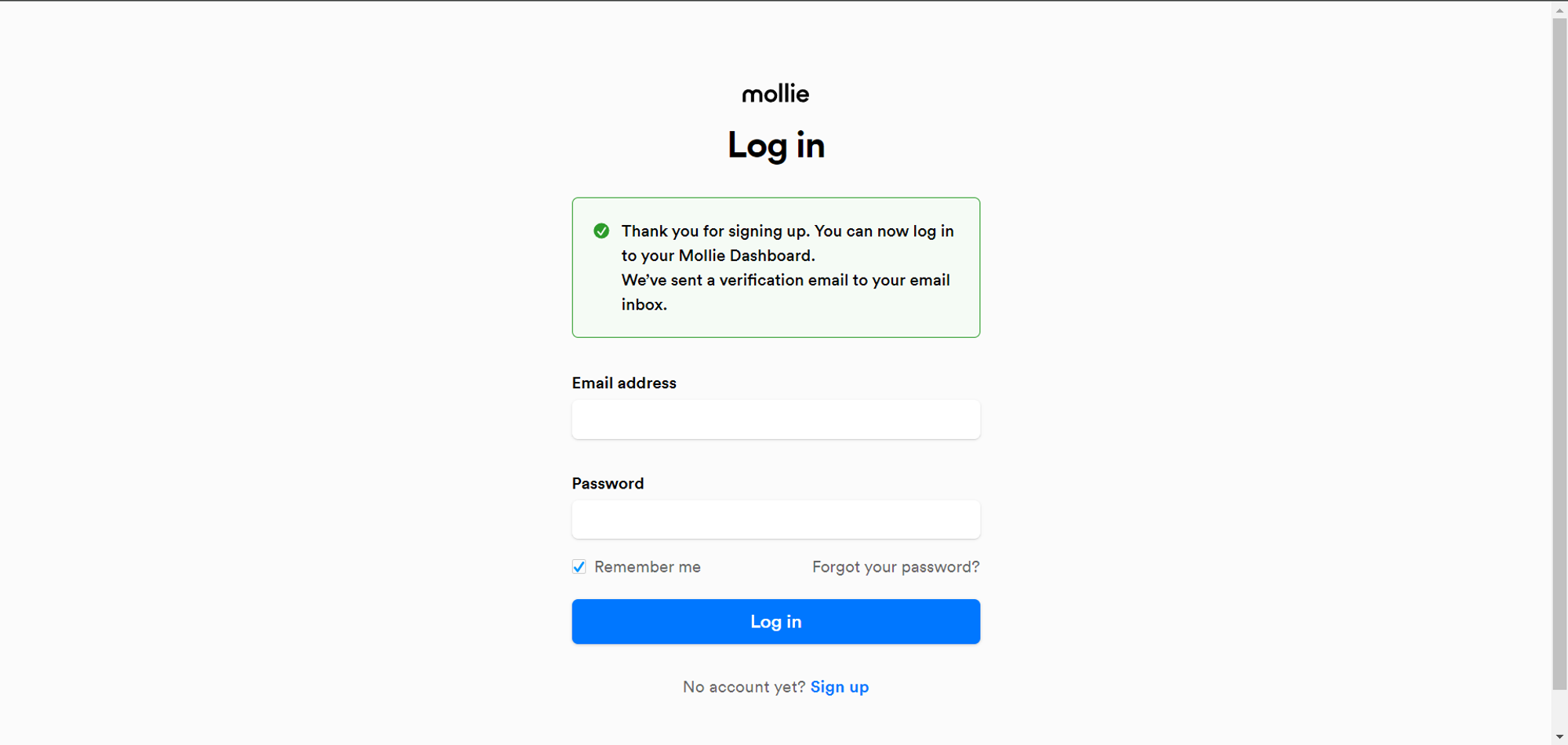
After creating your account, Mollie will send you a verification email to the address you used during registration. Check your inbox and click the verification link to activate your account.
Step 3: Access Mollie Dashboard
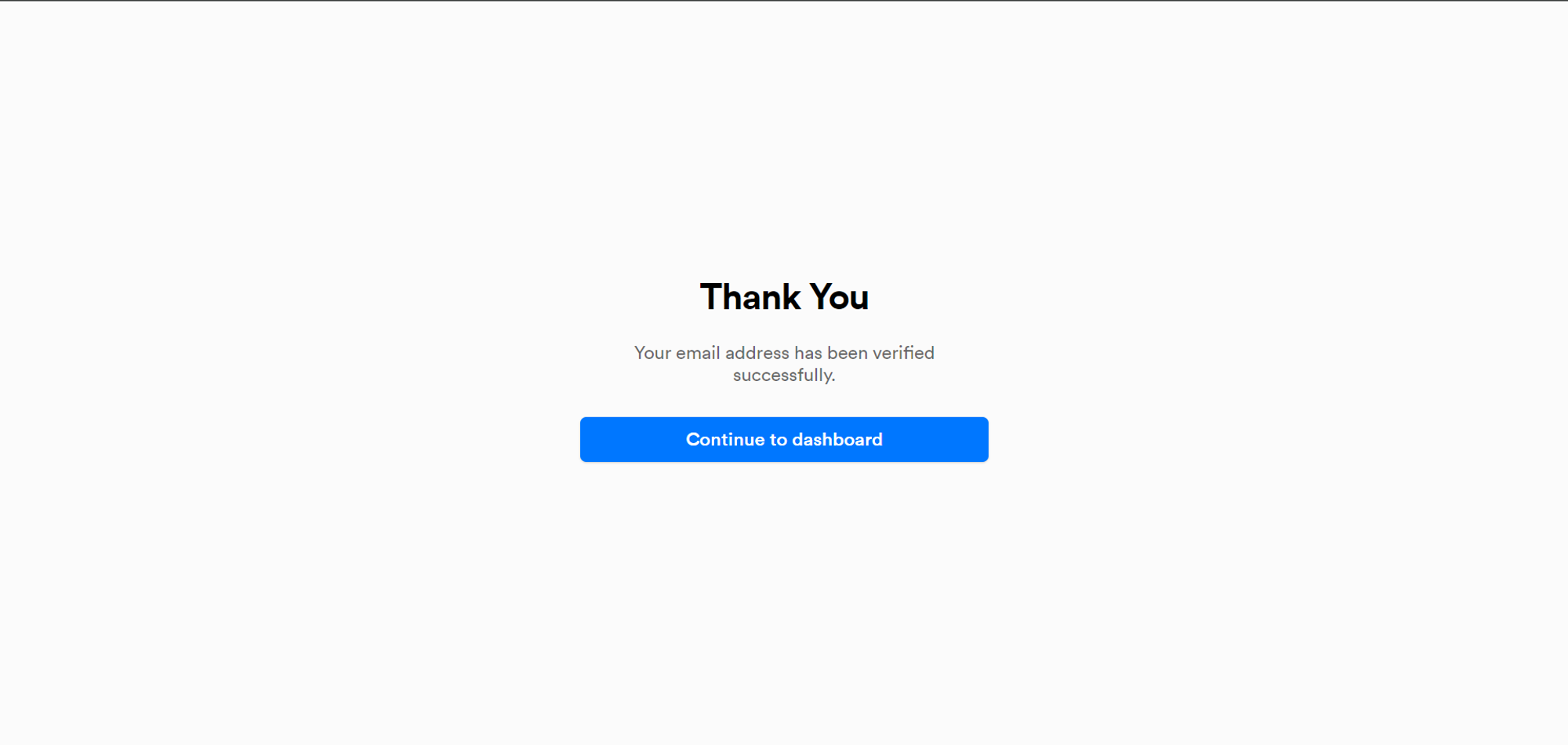
Once your email is verified, you can access the Mollie dashboard. This is where you'll manage your payment settings and get the necessary API keys.
Step 4: Complete Additional Information
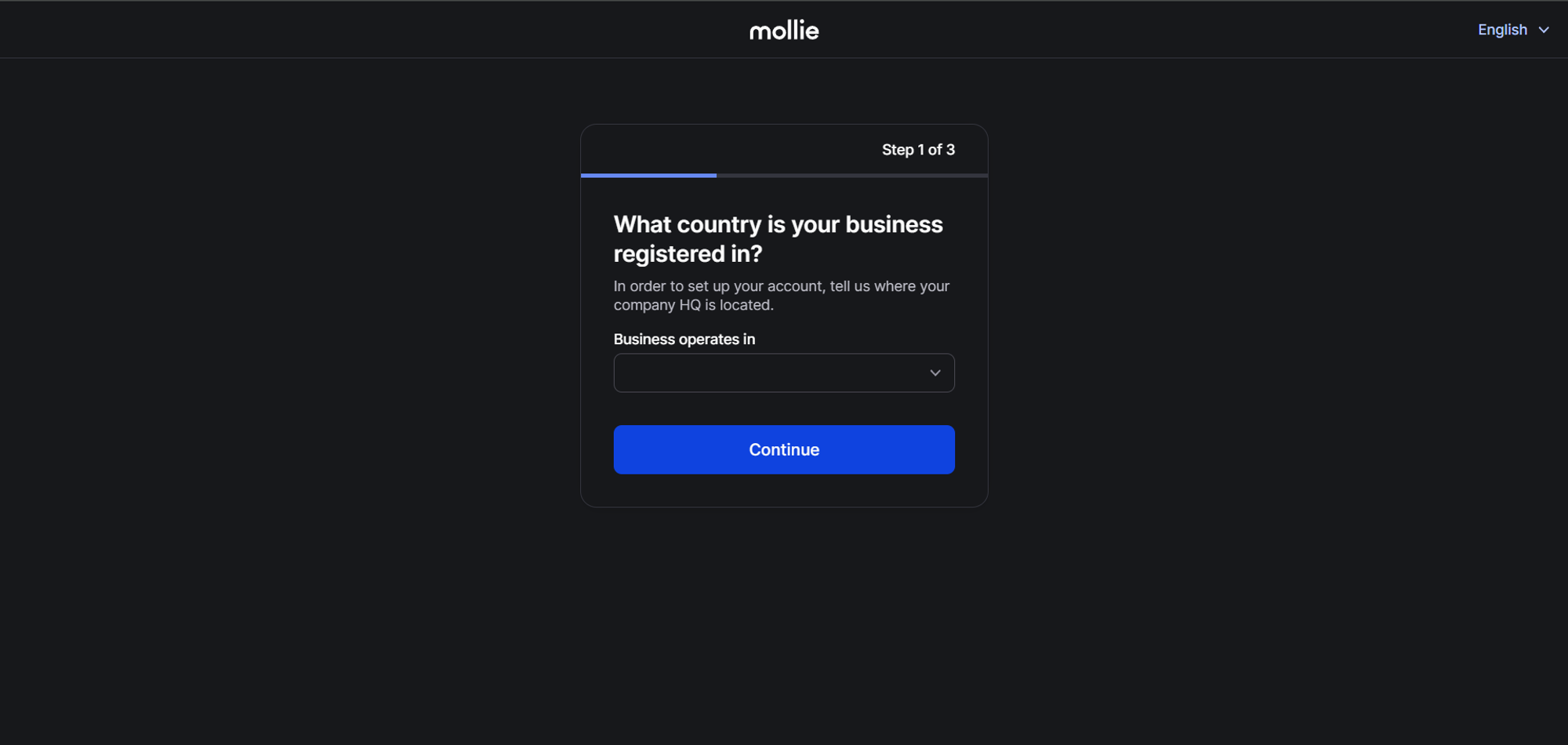
Before you can set up payments and use your API key, Mollie requires you to provide additional business information. This includes questions related to your business activities and details.
Step 5: Access API Keys
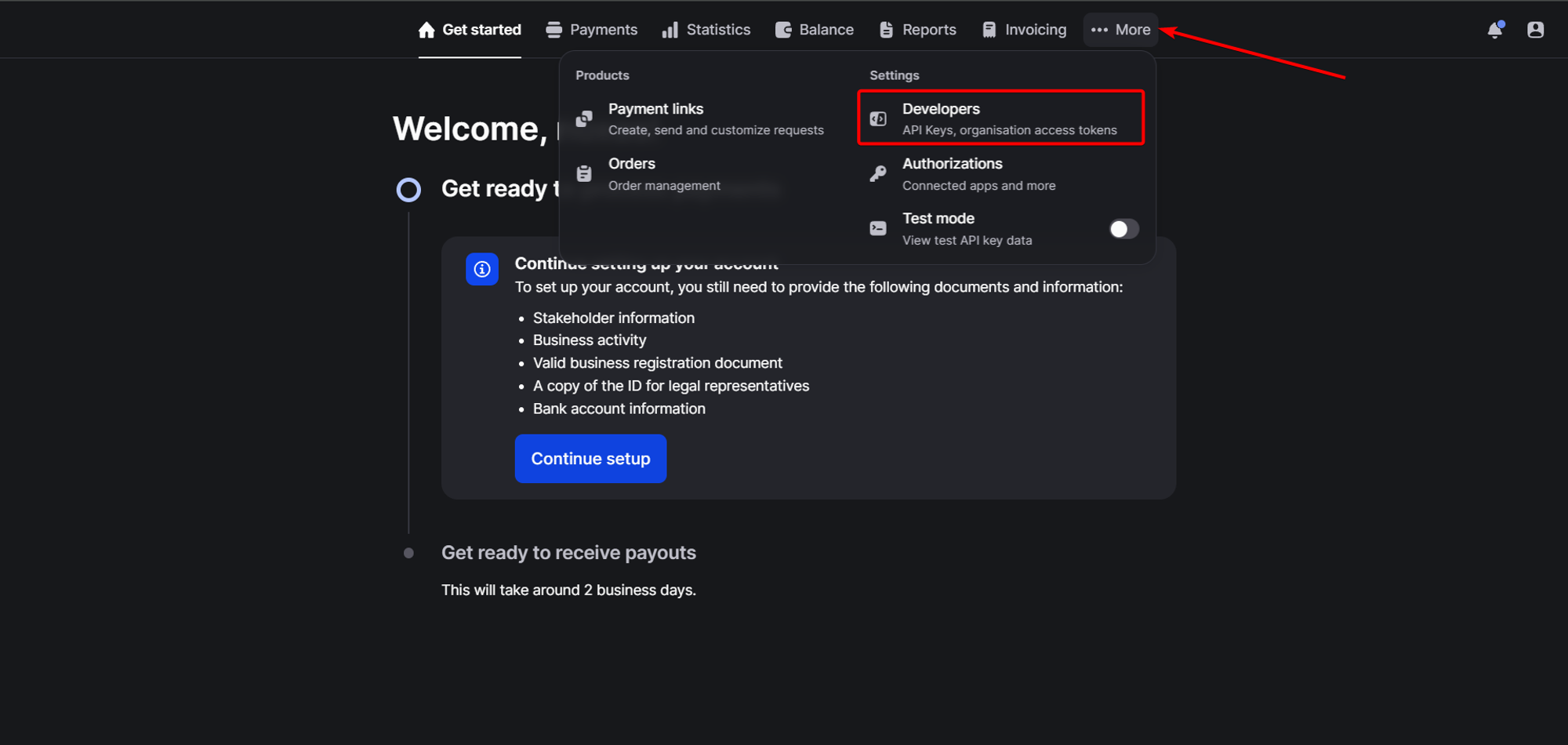
Once the required information is submitted, go to Mollie Dashboard > More > Developers to access your API keys.
Step 6: Get Test API Key
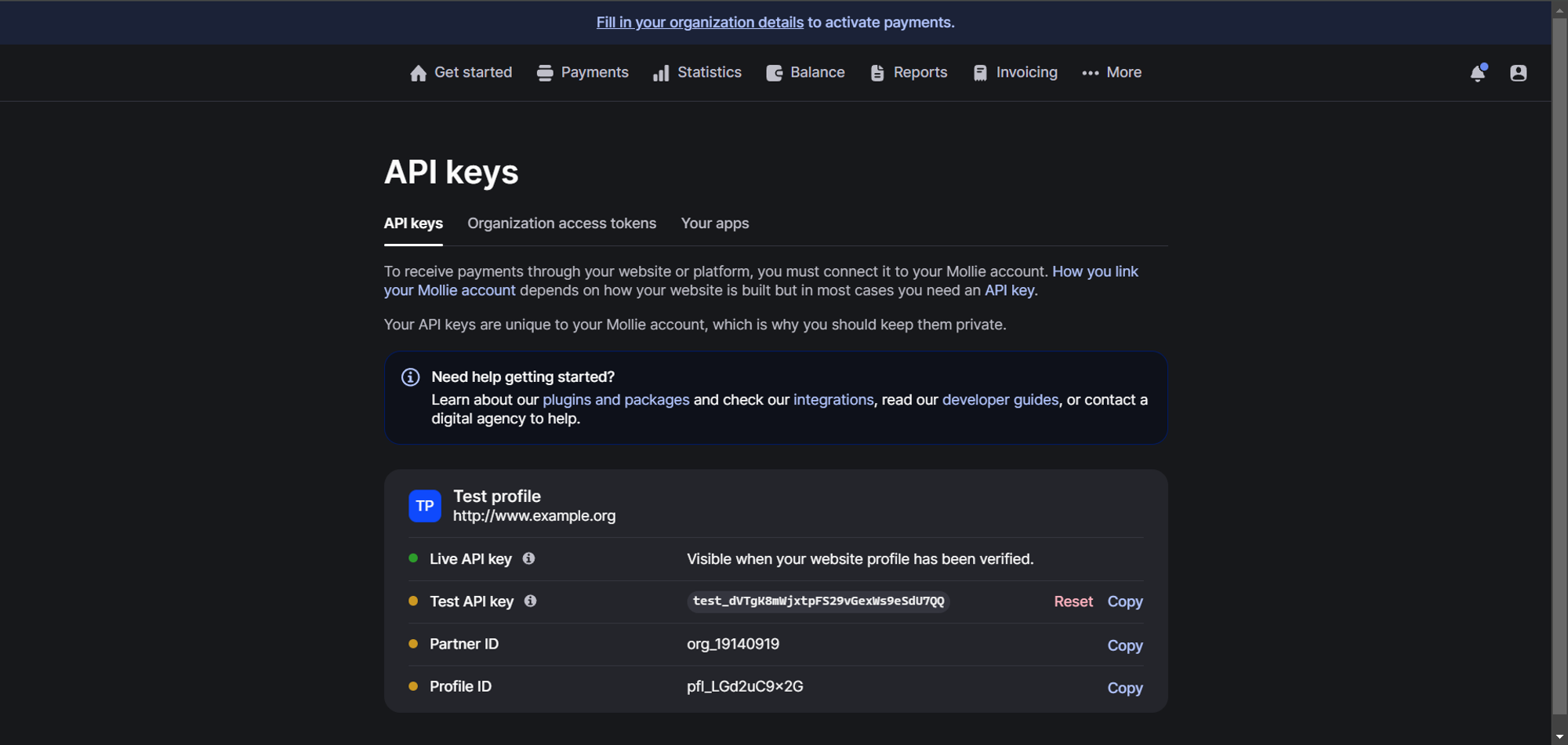
Initially, you will have access to the Test API Key. However, to start receiving real payments, you will need to provide additional information about your business to Mollie, such as your stakeholders and other relevant details. This is necessary for Mollie to verify your business for live transactions.
Step 7: Provide Stakeholder Information
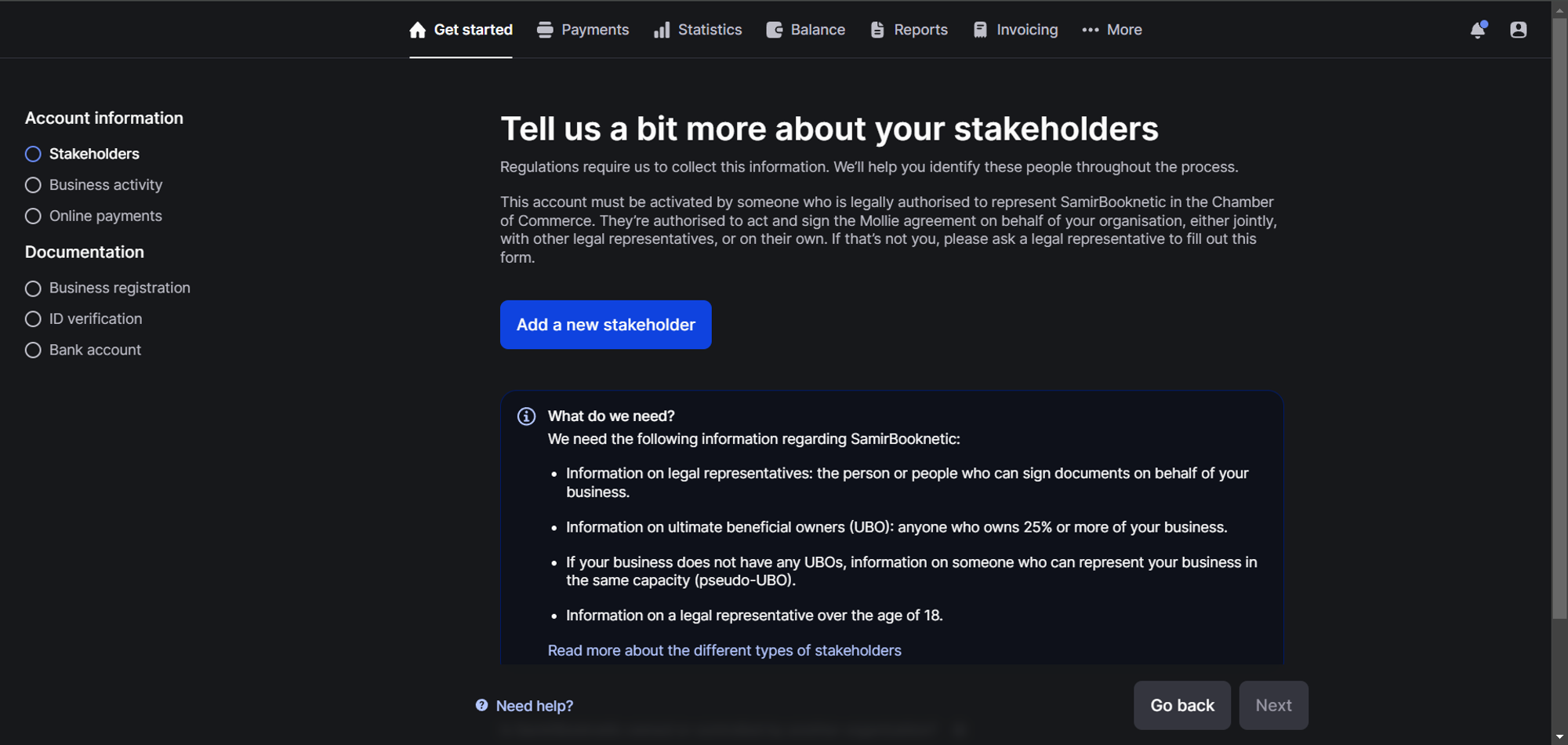
In this step, Mollie will ask for information about your business stakeholders. Complete the requested information. Once done, return to Mollie Dashboard > More > Developers to access the Live API Key.
Step 8: Add API Key to Mysched
Now that you have your Live API Key, copy it from the Mollie dashboard and paste it into Mysched's admin panel by navigating to Settings > Payment Settings > Payment Methods > Mollie > API Key.
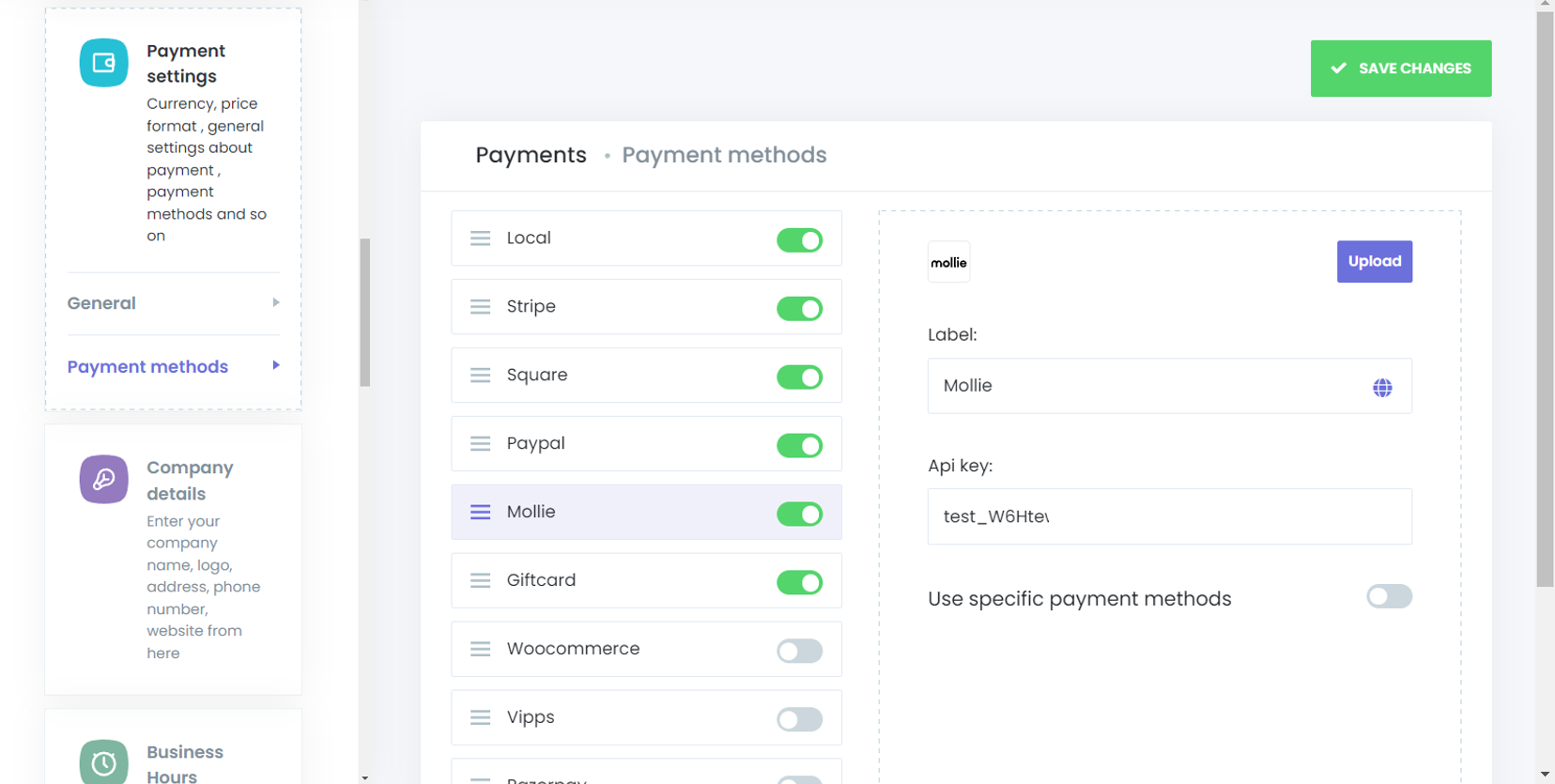
After entering the key, make sure to save your changes. Mysched is now successfully integrated with Mollie, and you can start receiving payments from your clients through the Mollie payment gateway.
By following these steps, you will have set up Mollie for your Mysched appointment booking system, ensuring a seamless and secure payment process for your customers.