Zapier Integration
The Zapier Integration feature in Mysched allows you to connect your appointment booking system with a vast array of third-party applications without any coding knowledge. This powerful feature is supported by Webhooks, enabling limitless integration options. Whether you want to sync bookings to your CRM, update Google Sheets, or trigger a series of actions in your favorite tools, the Webhooks integration gives you the flexibility to build custom workflows that suit your business.
Webhooks: Unlimited Integrations
Webhooks enable Mysched to communicate with other platforms by sending real-time data. When a specific event occurs, such as a new booking or a booking reschedule, Mysched can send information to other apps via Webhooks, allowing you to automate tasks and connect with countless services such as Google Sheets, Slack, Trello, and more.
Key Features of Webhooks Integration:
- Trigger any external application using real-time Webhooks.
- Automate workflows across various platforms.
- Customize the information shared with other applications.
- Flexibility to integrate with CRM systems, project management tools, databases, and more.
Example: Zapier Integration
While Webhooks give you direct access to many services, Zapier makes it even easier by offering thousands of app integrations. Using Zapier in combination with Mysched allows you to connect your appointment system with other tools like Google Sheets, Slack, Mailchimp, and countless others.
In this guide, we will walk through how to set up a Zapier integration to send new bookings to Google Sheets.
Setting up Zapier with Mysched
To start using Zapier with Mysched, follow these steps:
Step 1: Log in to Zapier
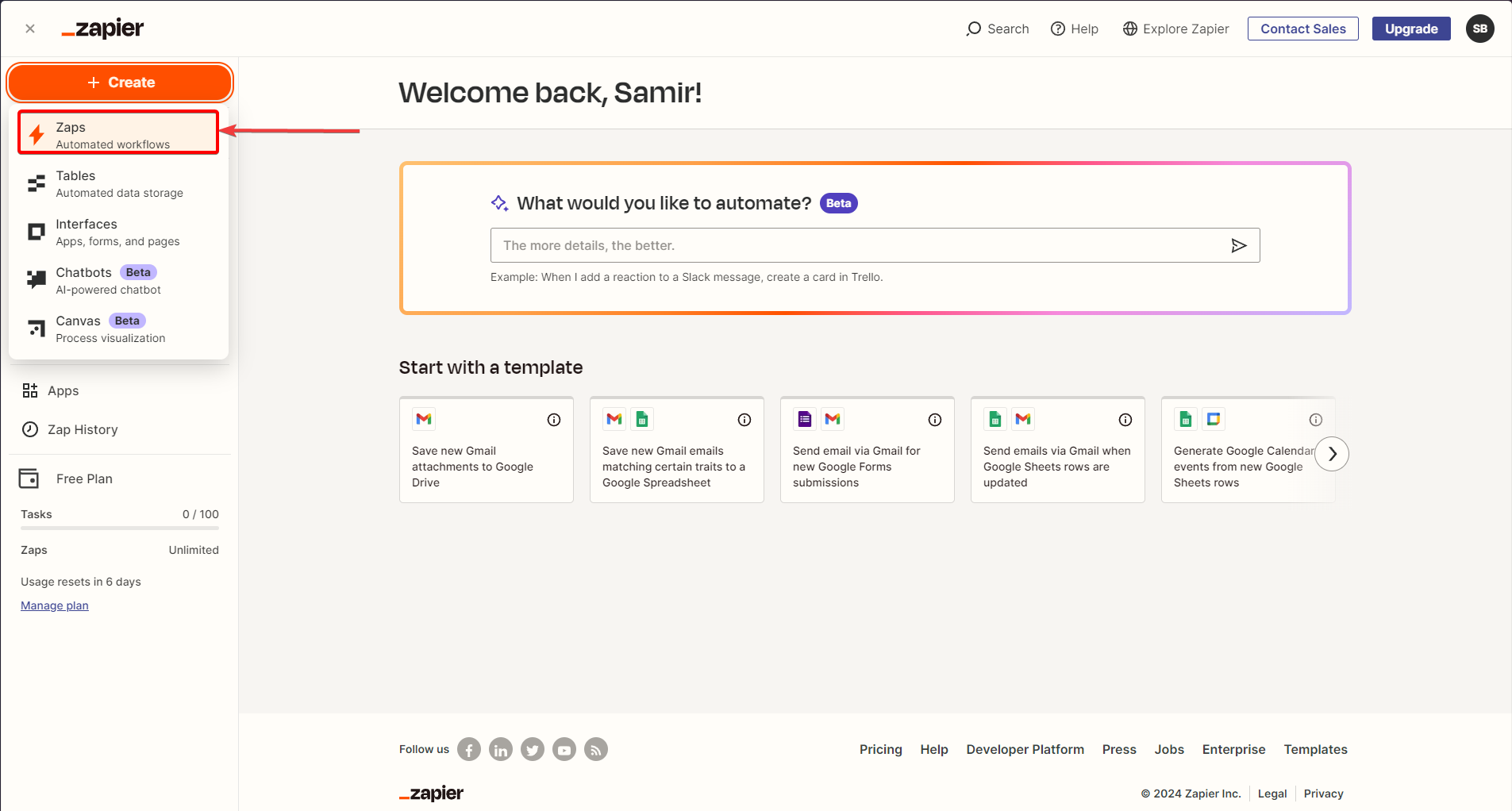
First, log in to your Zapier account. After logging in, click on the Create > Zaps button.
Step 2: Configure Webhook Trigger
After clicking Create Zaps, you’ll need to configure the following settings:
- Select Webhooks as the Trigger.
- For Trigger Event, select Catch Hook.
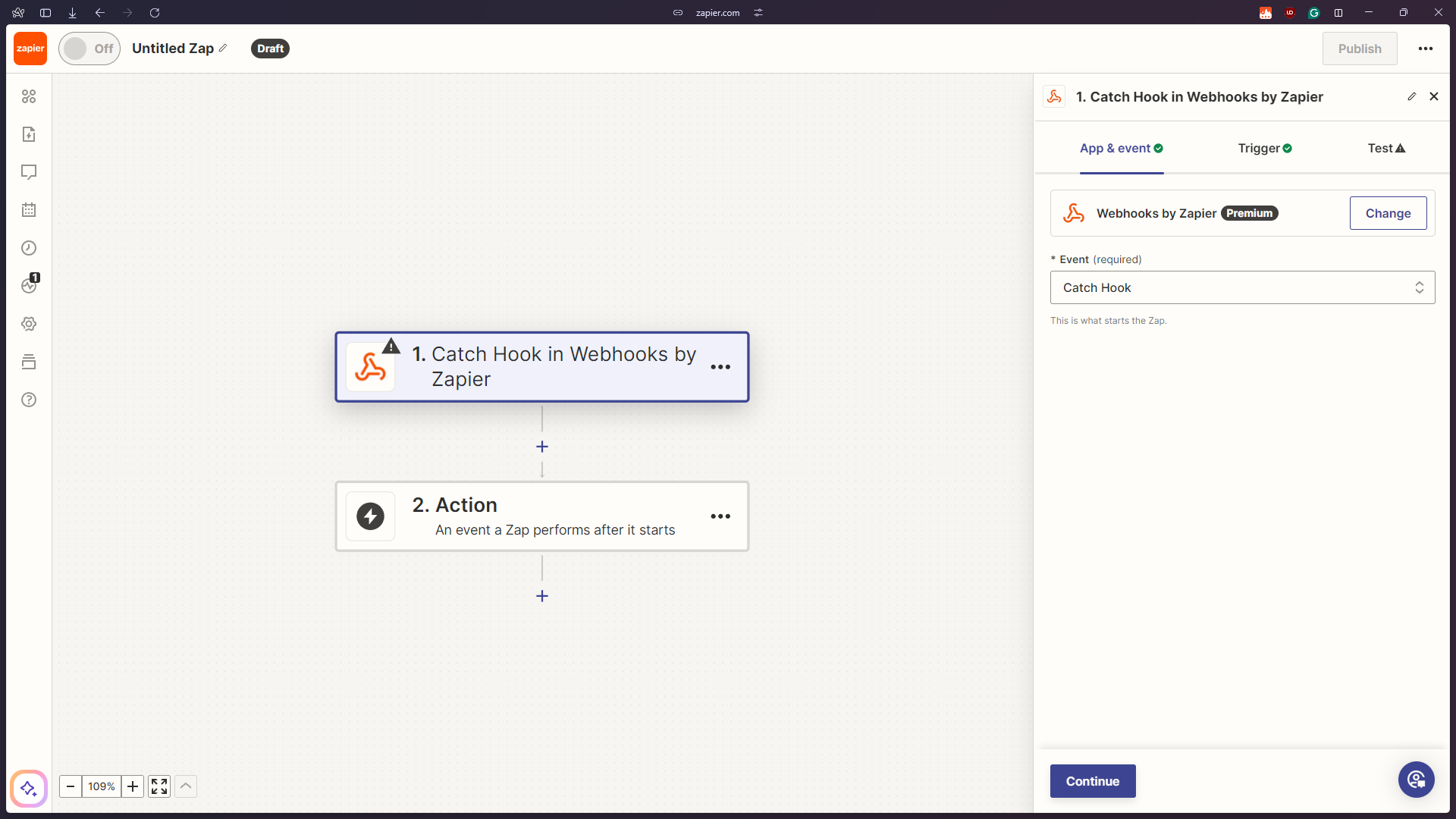
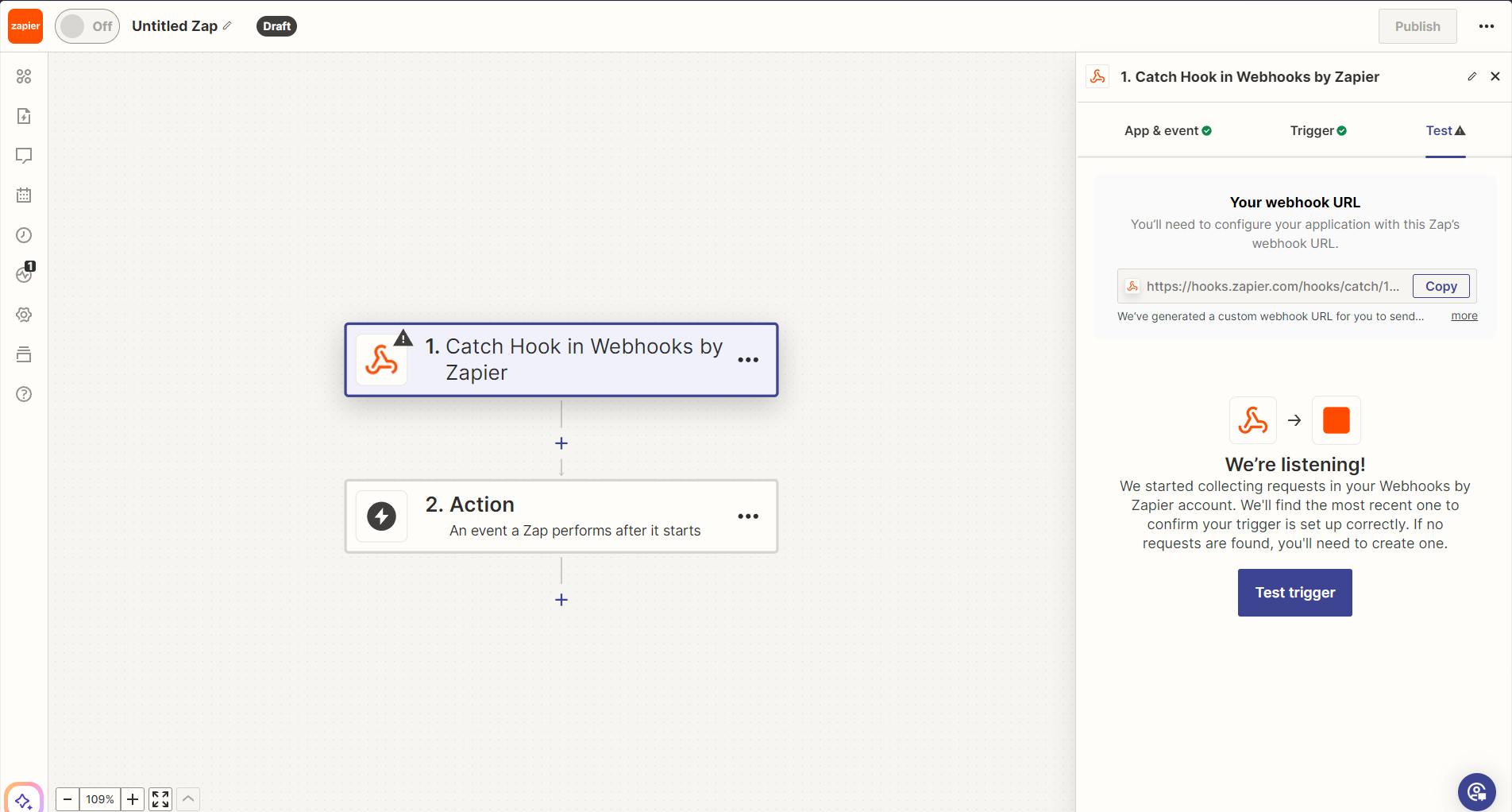
Then click Continue. Zapier will now provide a Webhook URL, which you'll need to copy.
Step 3: Set Up the Webhook in Mysched
Switch back to the Mysched dashboard. Navigate to the Workflows module and click the + Create New Workflow button.
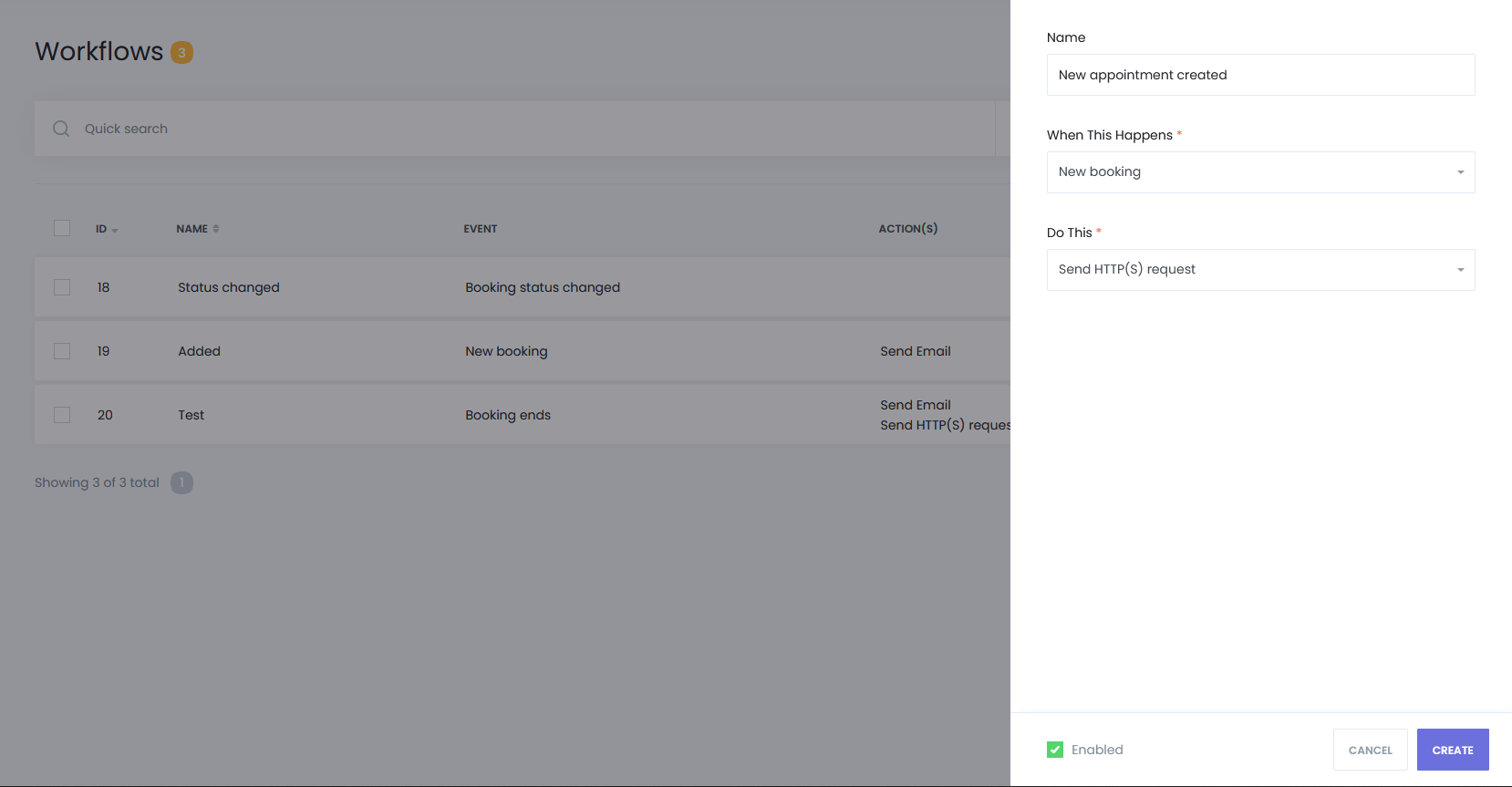
- Enter a name for your workflow.
- Select an event under When This Happens. Available events include:
- New Booking
- Booking Rescheduled
- Booking Status Changed
- Booking Starts
- Booking Ends
- New Customer Created
For this example, we’ll use New Booking as the trigger.
Step 4: Configure HTTP Request in Mysched
In the Do This field, select Send HTTP(s) request. Click Create to proceed.
Next, click the Setup button next to Send HTTP(s) request to configure the HTTP request.
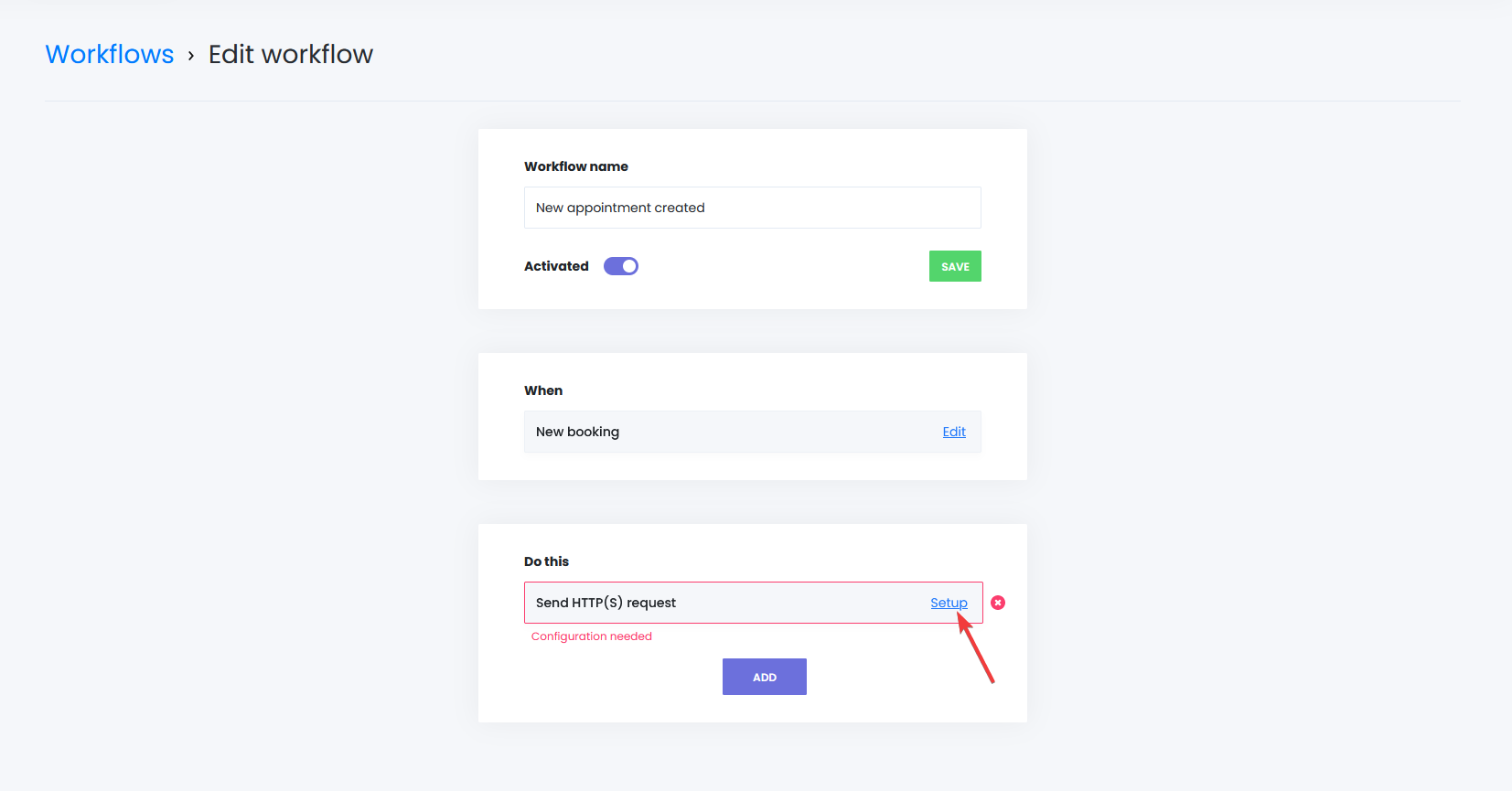
In the new window that appears:
- Paste the Webhook URL (copied from Zapier) into the URL field.
- Set Request Method to POST.
- Skip the Header section (optional).
- For Content Type, select Form Data.
Now, you'll add the data to send to Zapier by clicking Add New Field. Here are some examples of data you may want to send:
- Appointment ID
- Appointment Date
- Start Time
- Customer Name
Each field needs a variable name (on the left) and a value (on the right). Use Mysched's built-in shortcodes for the value, such as {{appointment_id}}, {{appointment_date}}, etc.
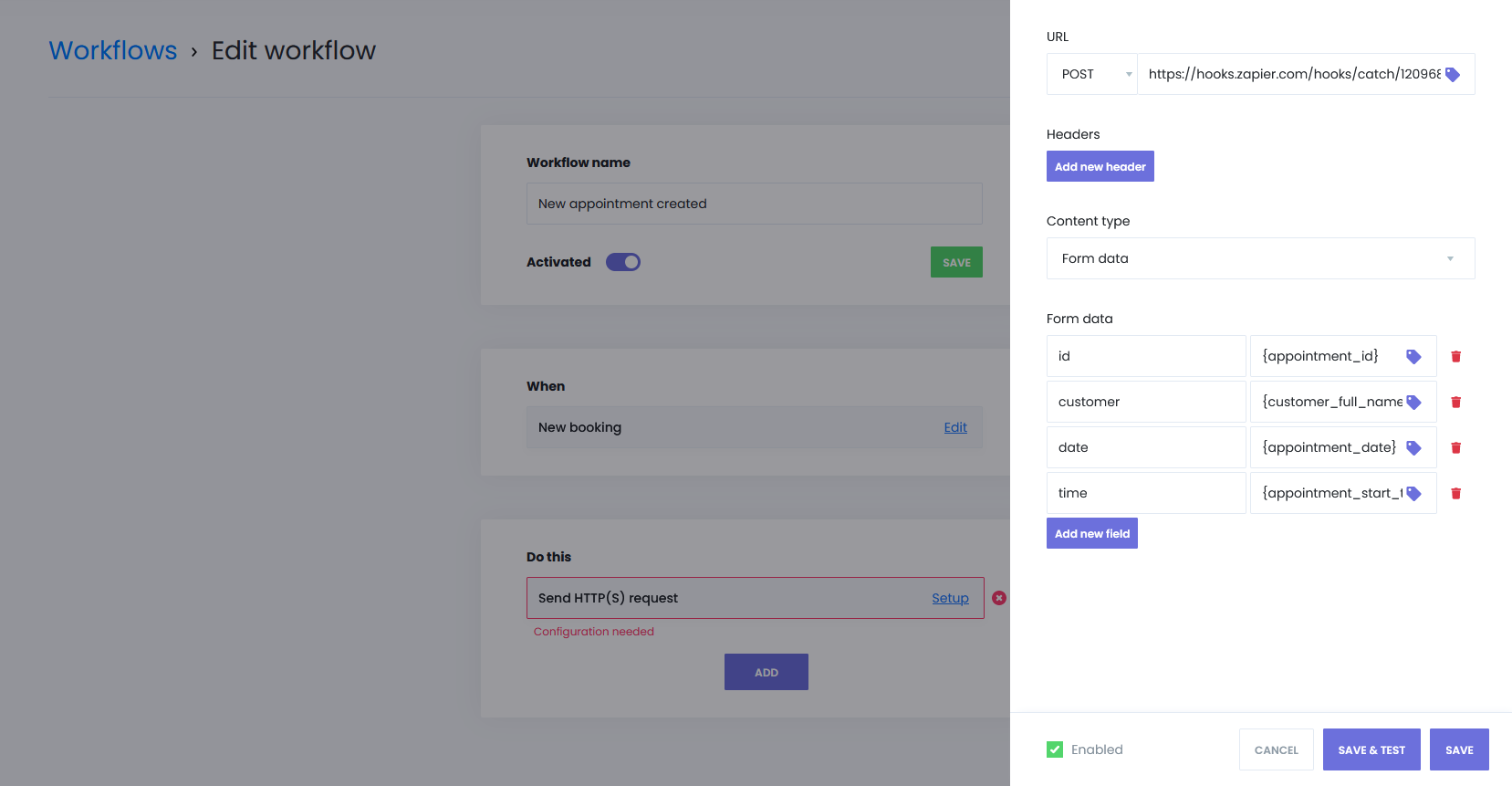
Click SAVE & TEST to send demo data to Zapier.
Step 5: Test the Trigger in Zapier
Go back to the Zapier dashboard and click Test Trigger.
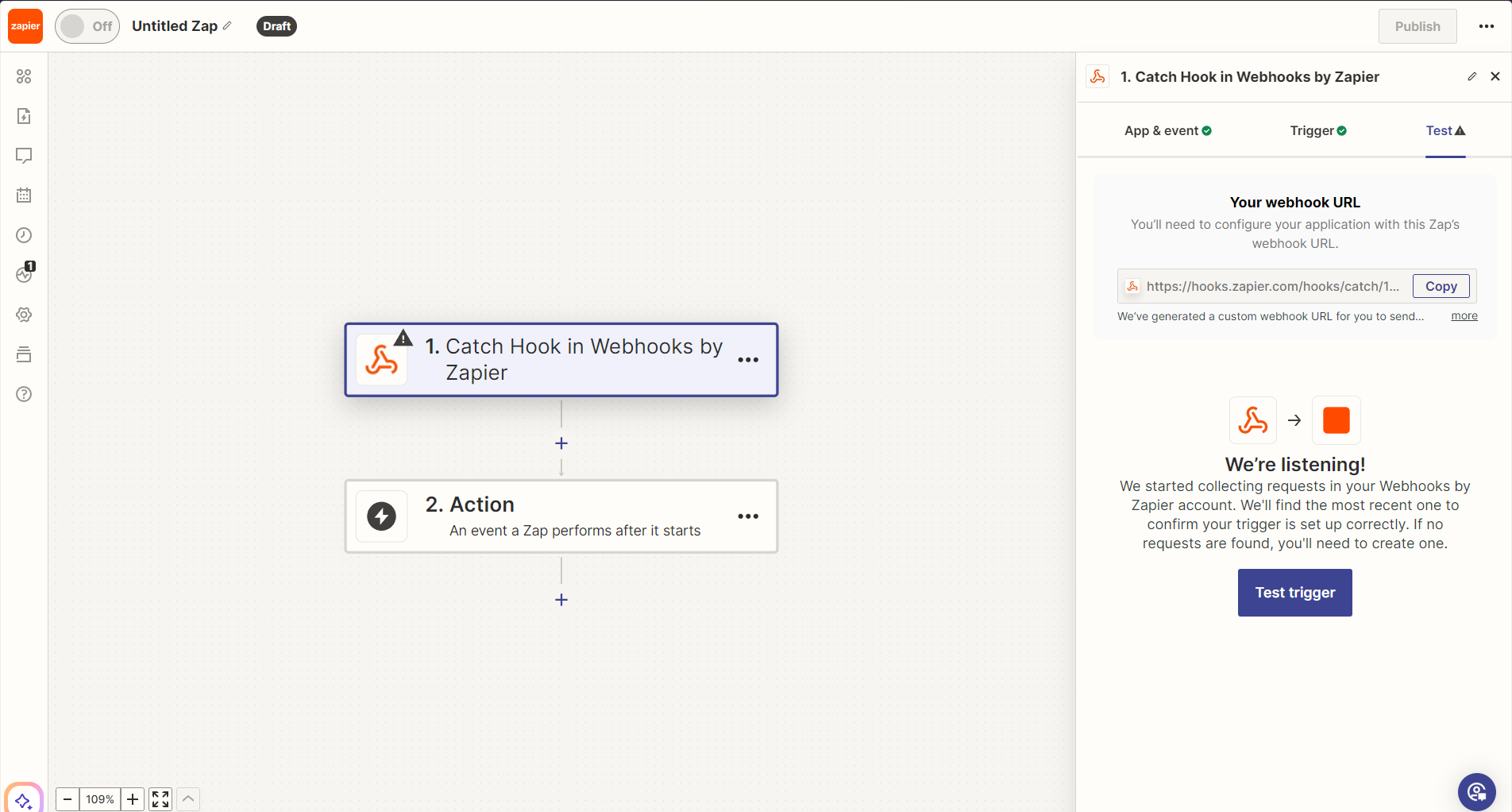
You should see the data that was sent from Mysched to Zapier.
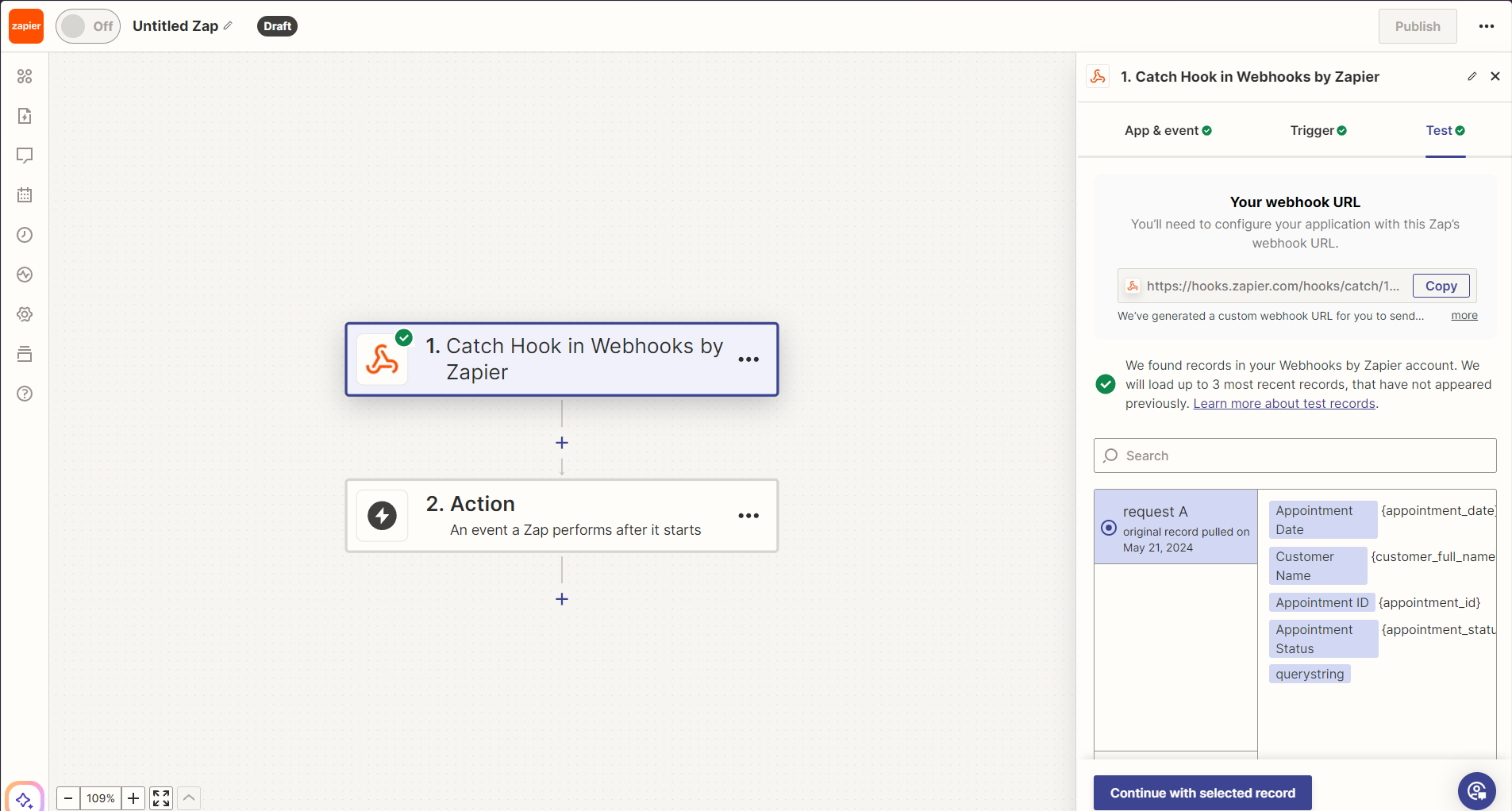
Step 6: Set Up Google Sheets (or another integration)
Next, you’ll configure what happens with the data. For this example, we’ll add a new row to Google Sheets. Select Google Sheets as the app and Create Spreadsheet Row as the action.
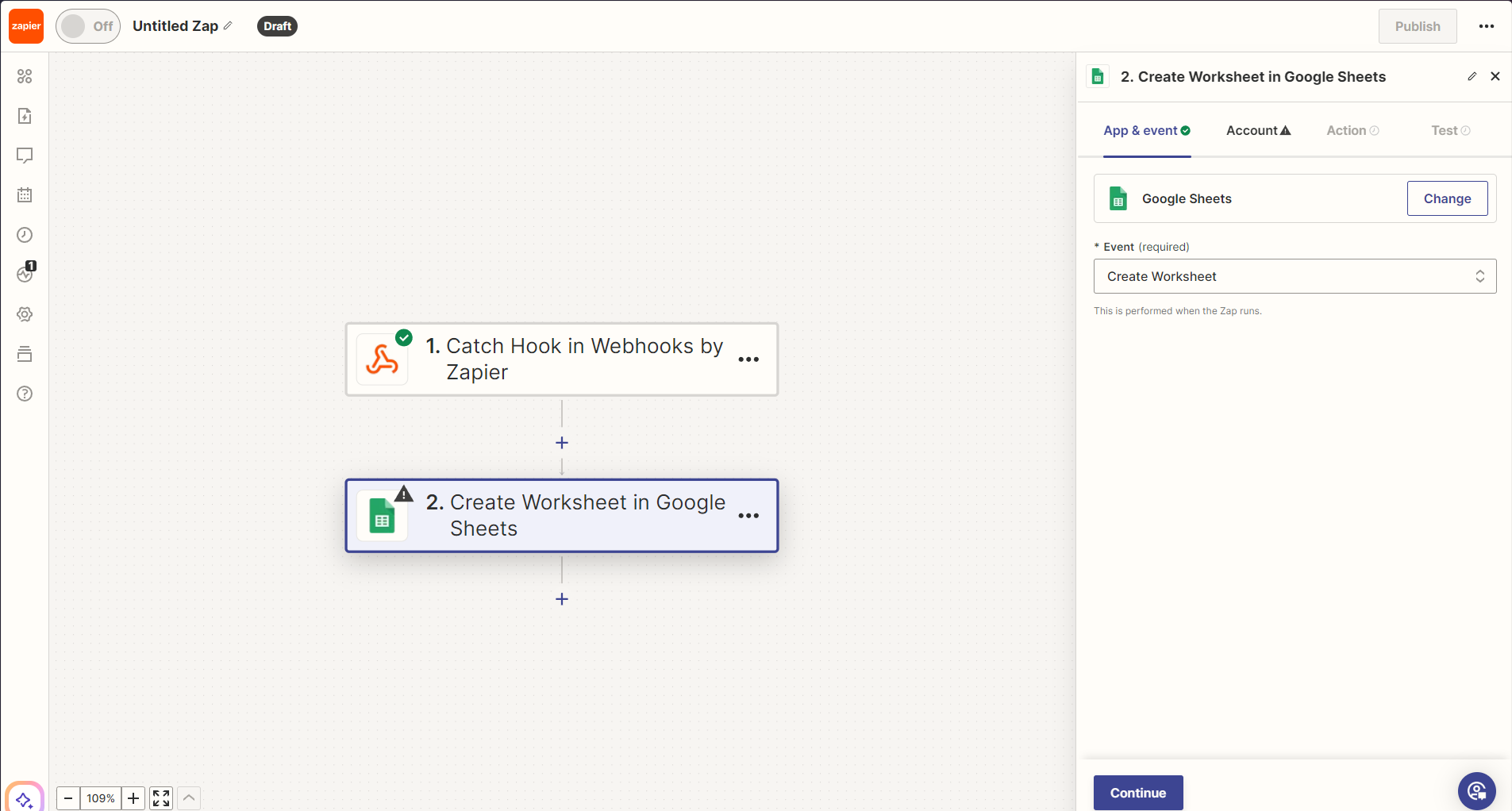
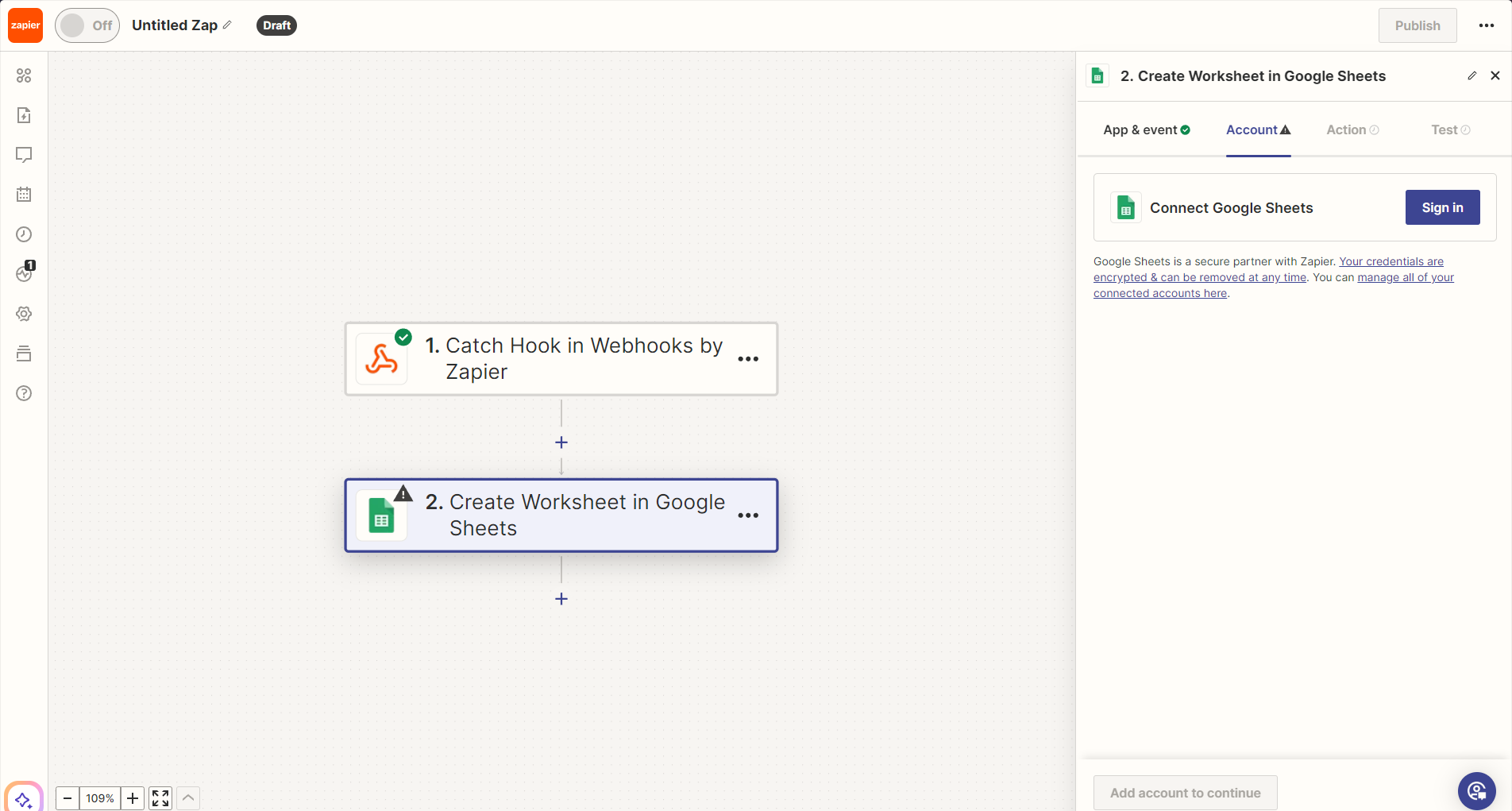
Click Sign in to Google Sheets and authenticate your account.
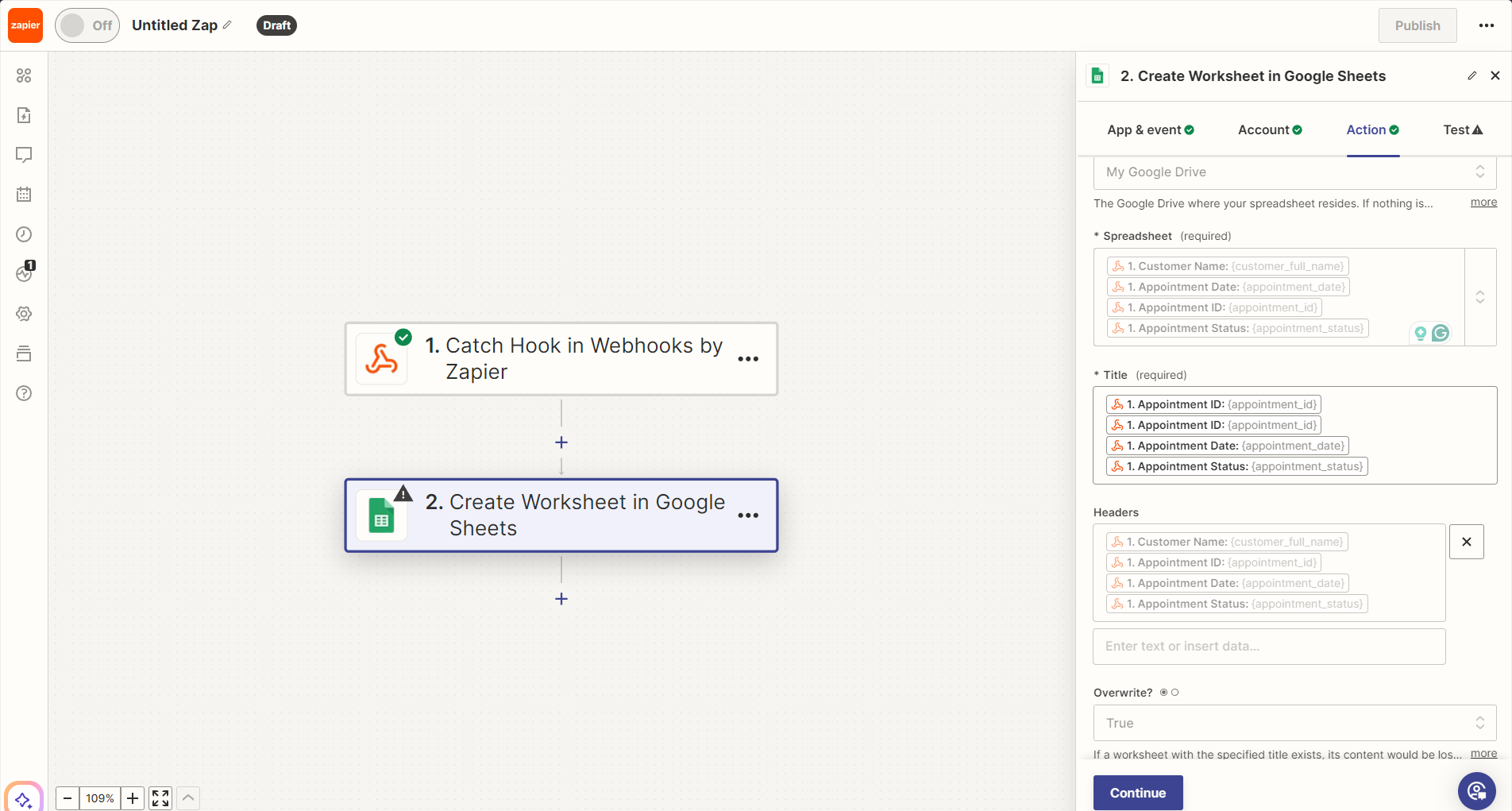
Once authenticated, select your Google Sheet and configure how the data will appear in the spreadsheet.
Step 7: Test the Integration
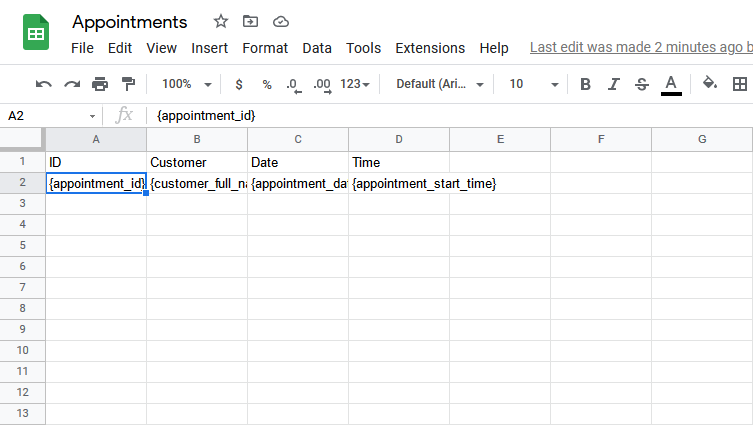
After configuring Google Sheets, click Test & Continue. This will send a test booking to Google Sheets.
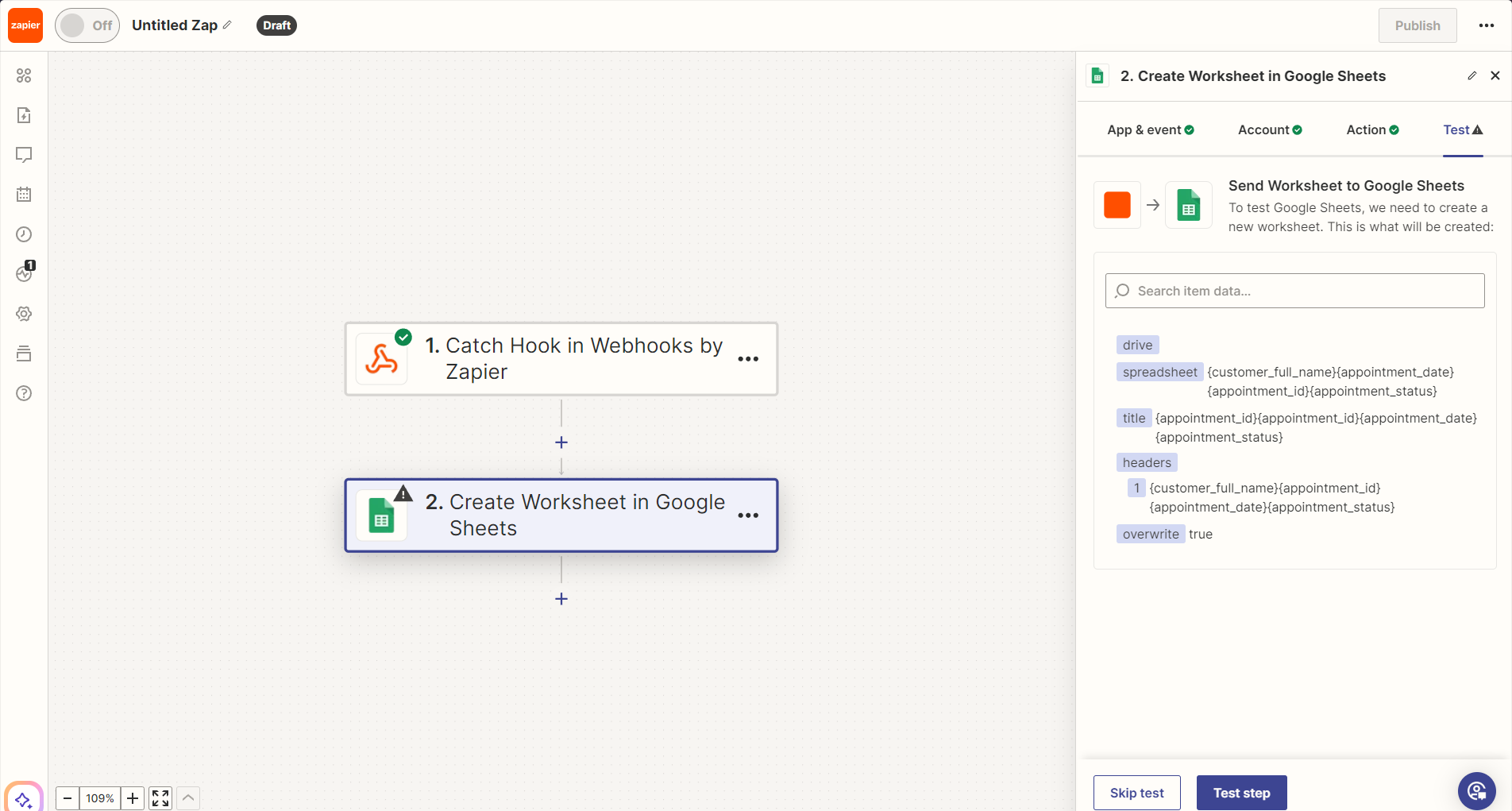
Check your spreadsheet to ensure the data is properly added:
Step 8: Activate Your Zap
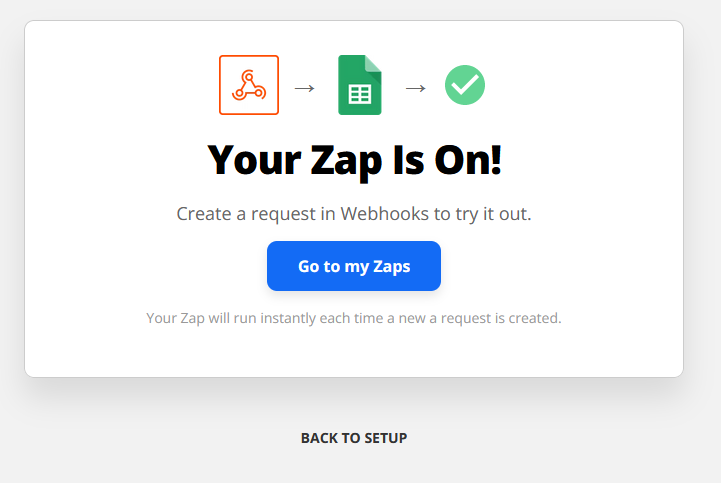
Finally, click Turn on Zap to activate your integration.
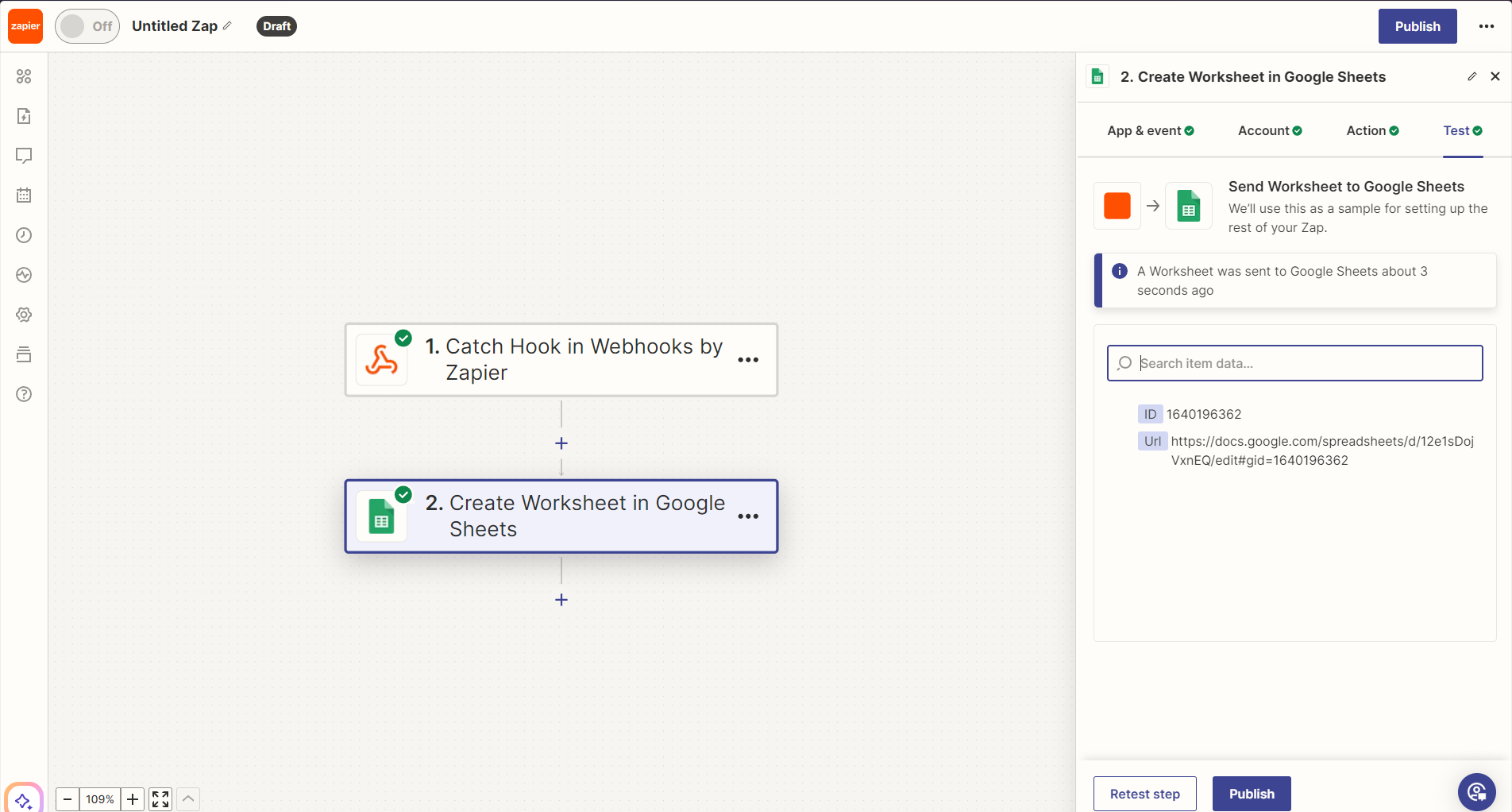
Congratulations! Zapier is now successfully integrated with Mysched. You can test this integration with real data by creating a test appointment in the Appointments module and verifying the data in your Google Sheets (or another app).
With this integration, you can automate various tasks and workflows between Mysched and thousands of other apps using Zapier. Whether you're updating spreadsheets, sending notifications, or managing projects, Mysched's webhook functionality gives you the flexibility to create efficient, customized solutions for your business.