Zoom Integration
The Zoom Integration feature in Mysched allows for seamless video conferencing integration, ensuring that virtual meetings are automatically created, rescheduled, and deleted when appointments are booked, modified, or canceled. With Zoom Integration, managing virtual appointments becomes hassle-free for both staff and clients, as everything is synchronized across the platforms.
What is Zoom?
Zoom is a cloud-based video conferencing service that enables users to meet virtually via video, audio, or both, and it supports live chat features. Zoom meetings can also be recorded for later use. Zoom has become an essential tool for over 50,000 companies globally, making it a reliable and widely-used platform for business communications.
Advantages of Using Zoom
-
Modern communications for your dispersed team:
- Zoom provides HD video and audio services, even in low-bandwidth environments, allowing teams to collaborate effectively regardless of location.
-
Single platform for meetings, phone, and webinars:
- By using Zoom, businesses can streamline their communication tools into one platform, covering meetings, webinars, phone calls, and chat features.
-
Multi-device flexibility:
- Zoom works across various operating systems (PC, Mac, iOS, Android), making it highly adaptable. It can also integrate with hardware for conference rooms, making meetings easier to manage and scale.
How Does Zoom Work with Mysched?
When an appointment is booked using Mysched, a Zoom meeting is automatically created via Zoom’s API. The meeting URL is sent to the client, staff, and admin using the Workflow module. This fully automates the process, eliminating manual scheduling and ensuring a smooth experience for all users.
Joining Meetings
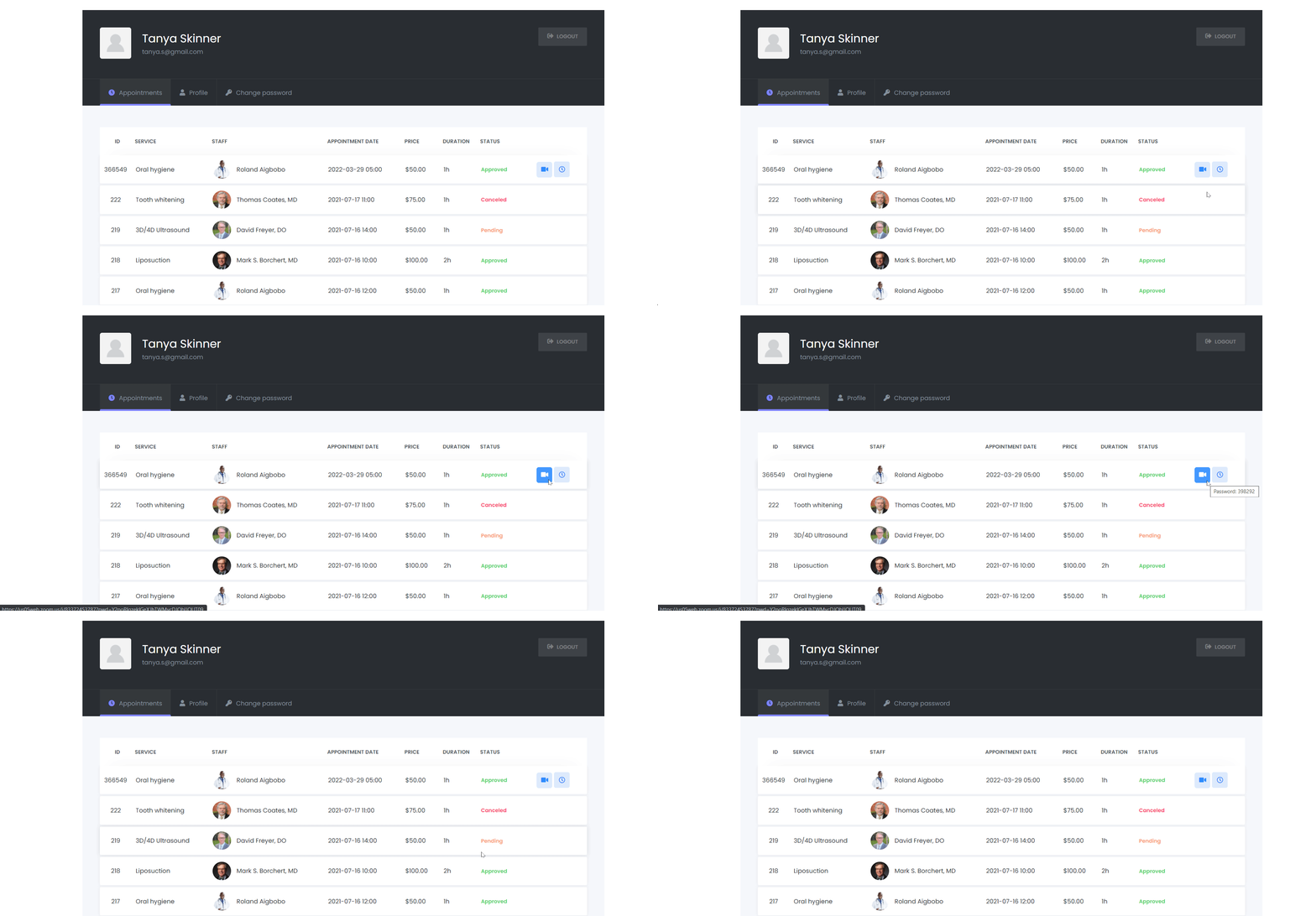
Clients and staff can join Zoom meetings directly from their Mysched panels. The "Start Meeting" button is available on the Staff Admin Panel,
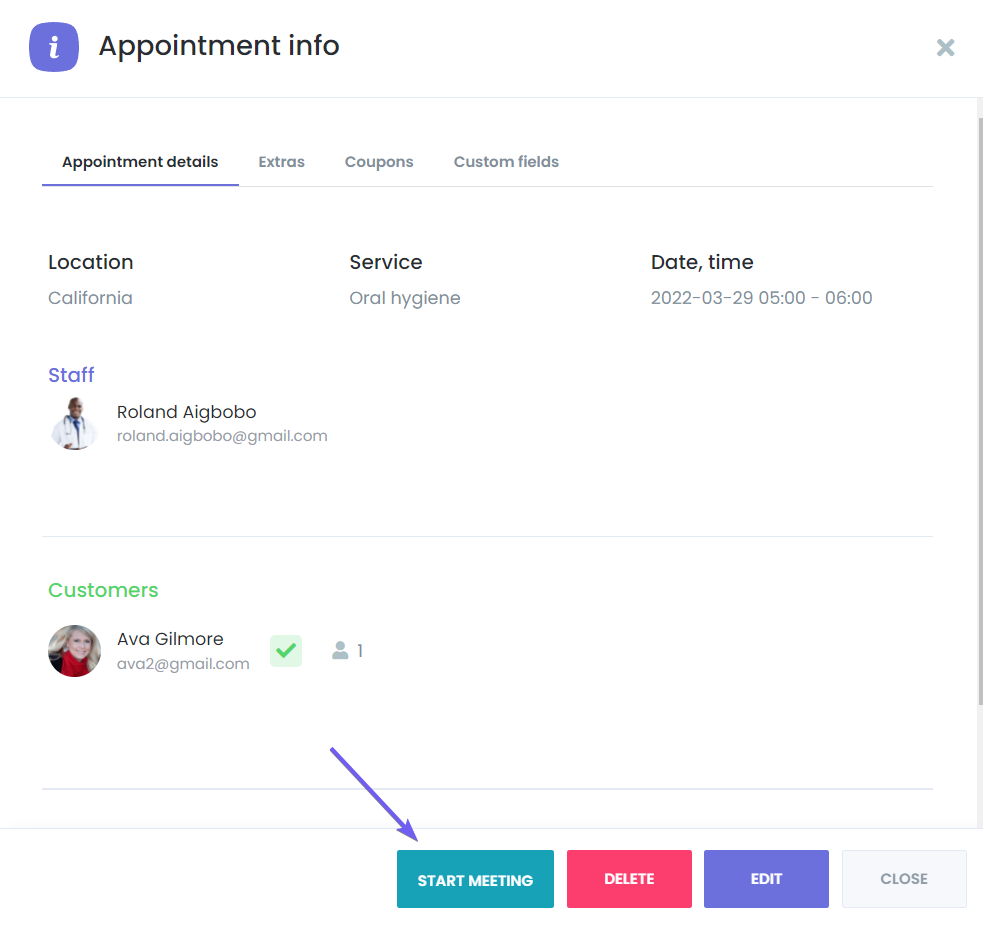
and the "Join Meeting" button can be found on the Front-end Customer Panel.
Assigning Zoom Accounts to Staff
You can assign different Zoom accounts for each staff member. Staff-specific Zoom meetings will be reflected in the Zoom dashboard, allowing each staff member's meetings to be distinguished. Additionally, Zoom users can be added and linked to individual staff profiles within Mysched for greater flexibility.
Full Synchronization with Zoom
Mysched and Zoom work together seamlessly, ensuring that:
- When an appointment is rescheduled in Mysched, the corresponding Zoom meeting is also rescheduled automatically.
- When an appointment is canceled or deleted from Mysched, the Zoom meeting is automatically removed.
This synchronization saves time and ensures that your virtual appointments are always up to date without the need for manual intervention.
Using Keywords with Zoom
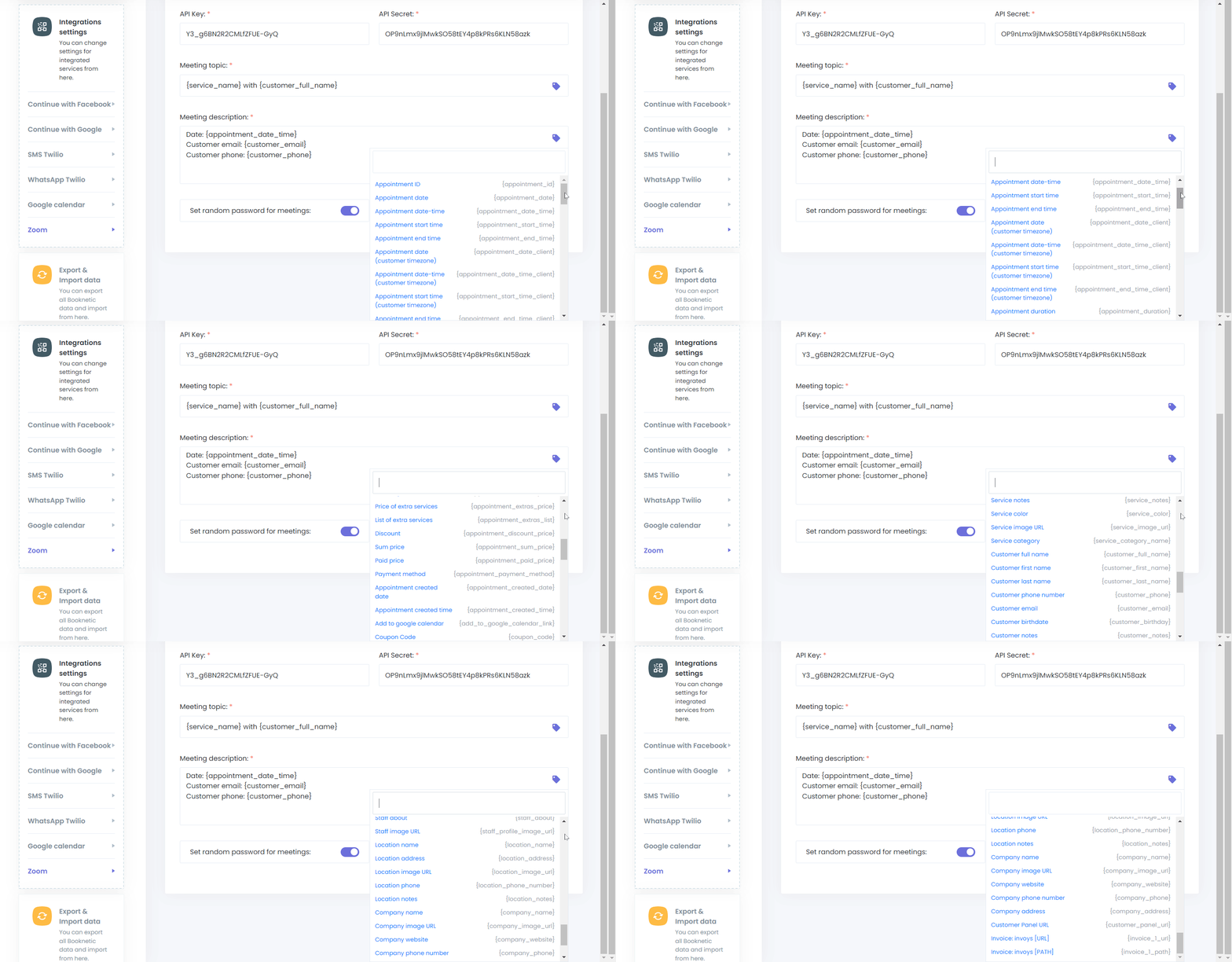
Mysched provides a variety of useful keywords that can be used to enhance the Zoom meeting information. These keywords allow you to dynamically populate Zoom meeting details such as appointment date, customer name, service information, and more. This helps ensure that your clients have all the necessary information in their meeting invitations.
How to Integrate Zoom with Mysched
Integrating Zoom with Mysched is simple. Follow these steps to complete the setup:
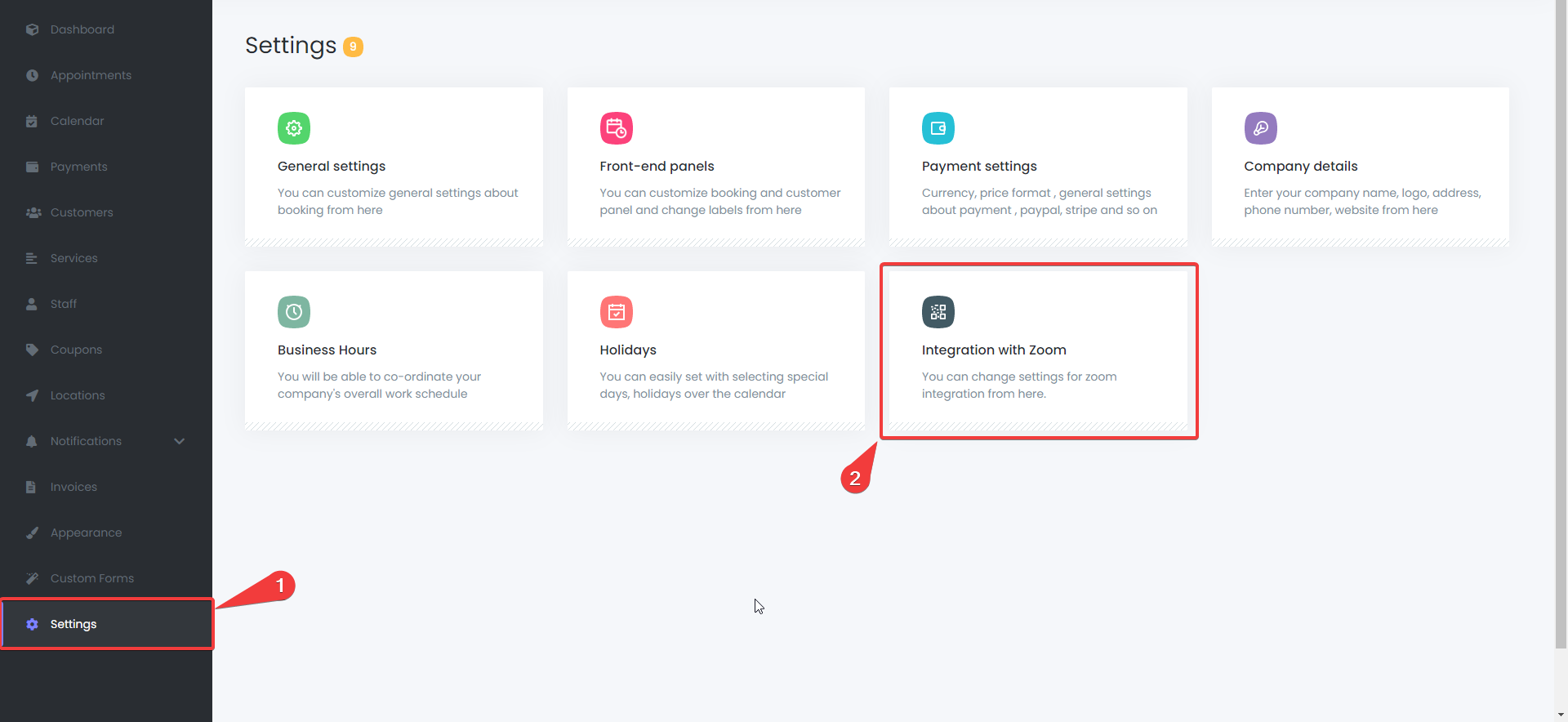
Step 1: Access Zoom Integration Settings
Navigate to Settings > Integration with Zoom from your Mysched dashboard.
Step 2: Connect with Zoom
Click the CLICK TO CONNECT WITH ZOOM button to begin the authorization process.
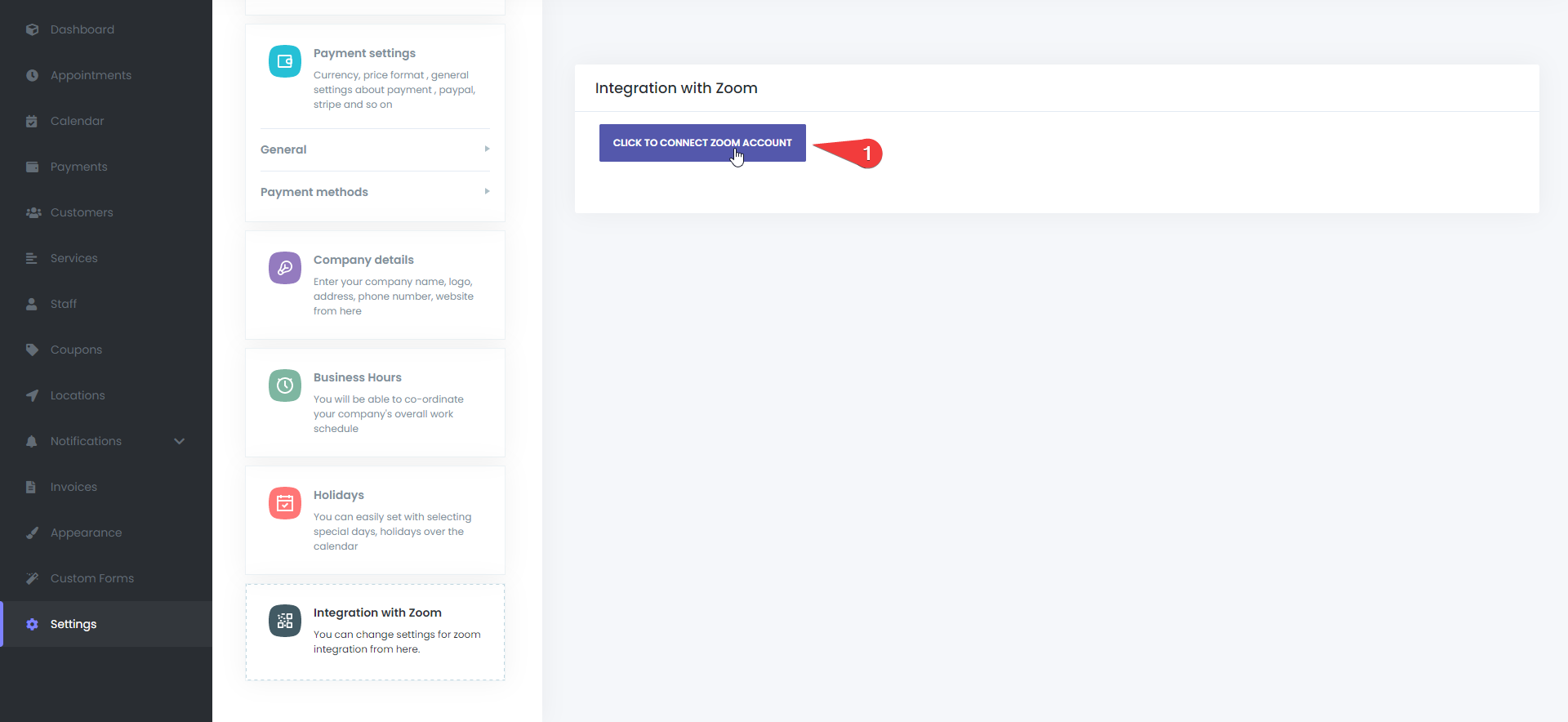
Step 3: Authorize Zoom
You will be redirected to Zoom to authorize your account. Allow the necessary permissions to link Mysched with Zoom.
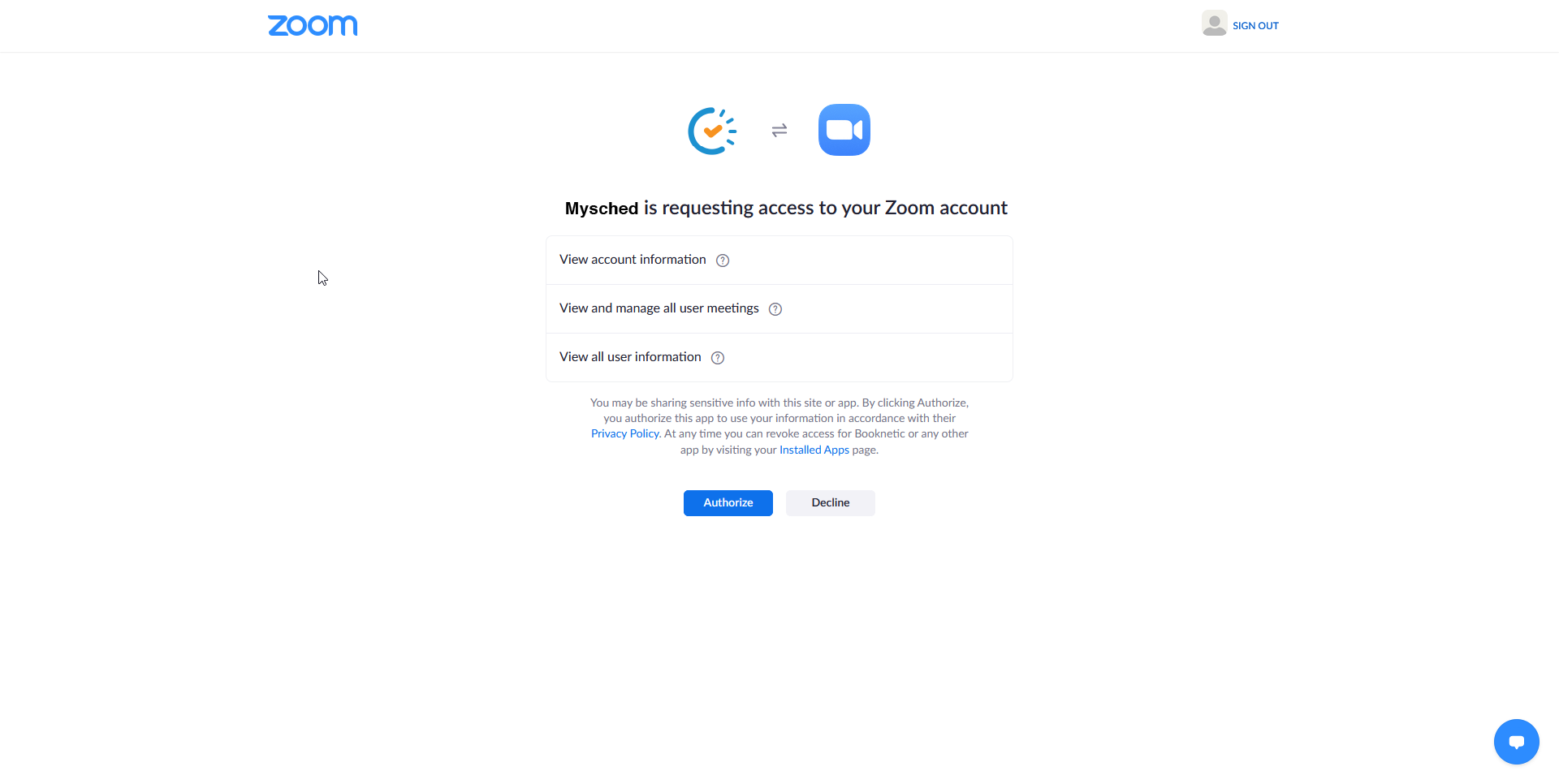
Step 4: Zoom Connection Confirmation
Once authorized, you will be redirected back to Mysched, where a confirmation message will indicate that your Zoom account is successfully connected.
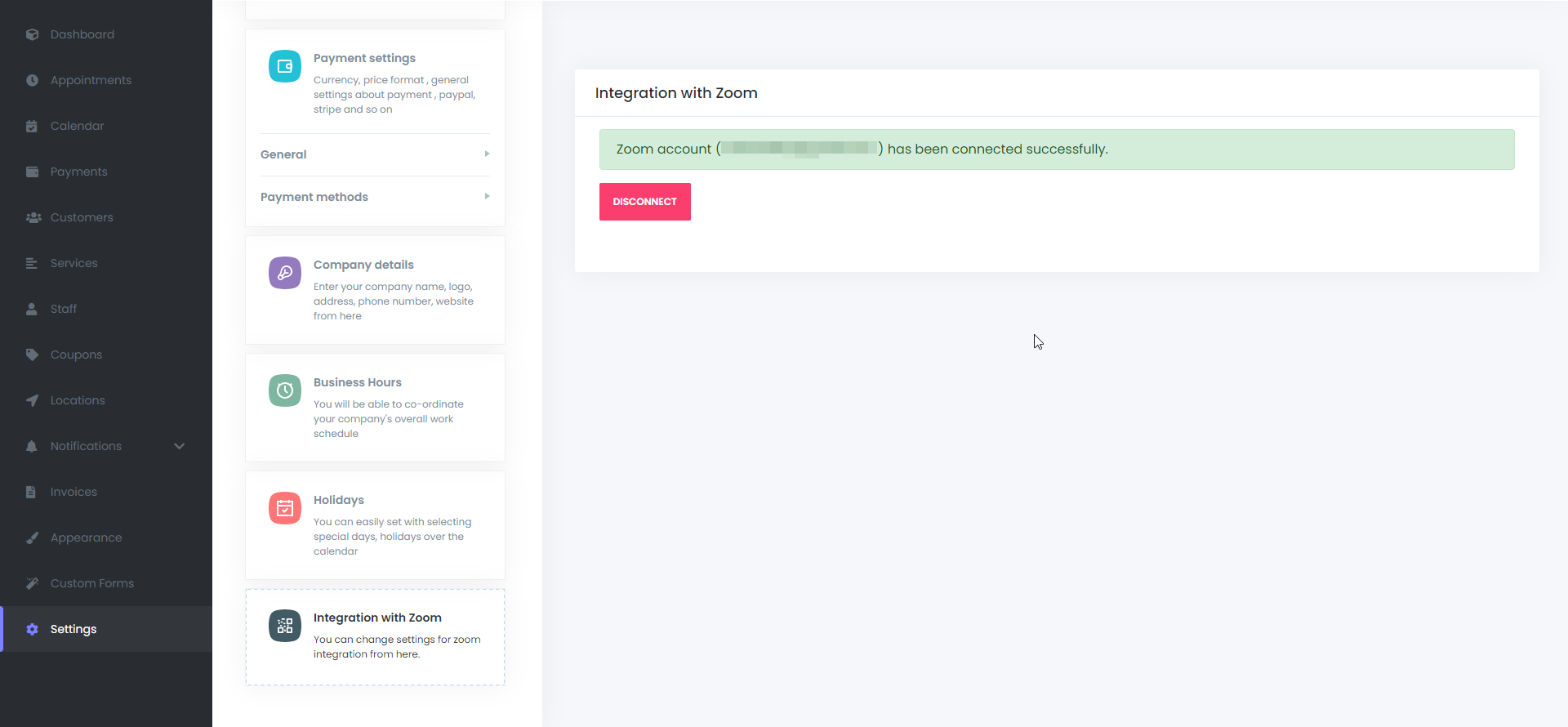
Step 5: Enable Zoom for Specific Services
To activate Zoom for specific services, go to the Services module, select the service you want to link to Zoom, and enable the Zoom integration for that service.
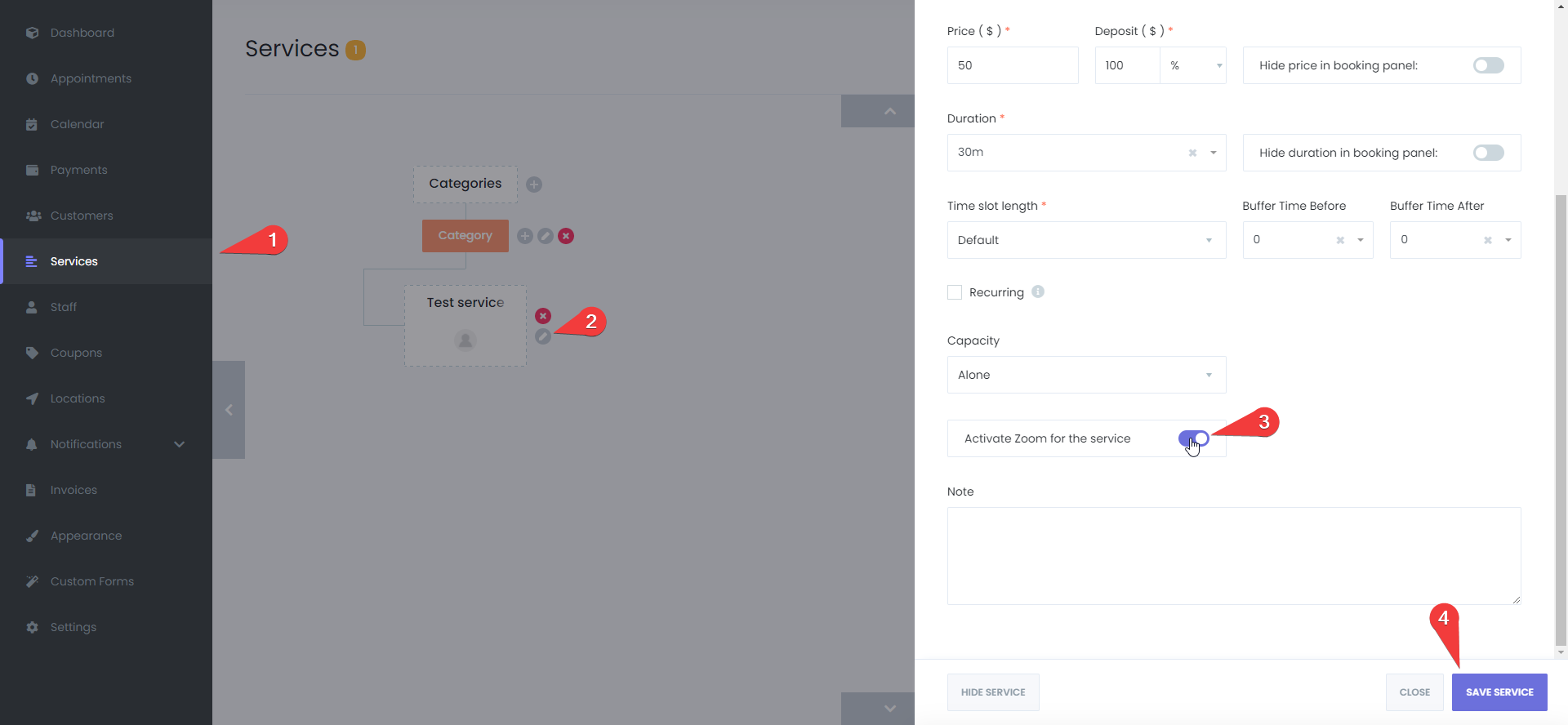
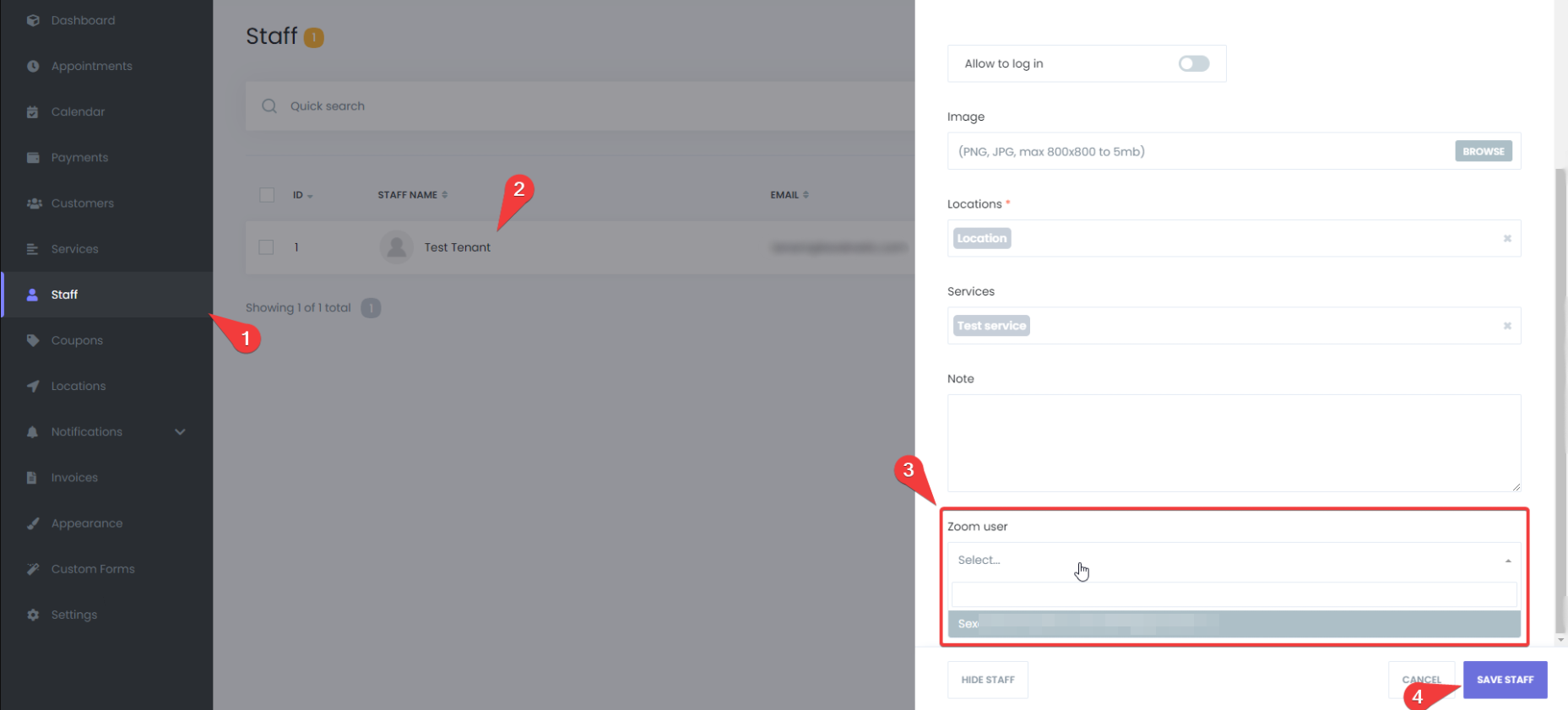
Step 6: Connect Zoom to Staff Members
To link Zoom accounts to staff members, go to the Staff module, edit the staff profile, and assign the relevant Zoom account in the Zoom user section.
Sending Zoom Meeting URLs to Clients
Once Zoom is integrated, Mysched automatically creates Zoom meetings for all virtual appointments. The Zoom meeting URL can be shared with clients via email, SMS, or WhatsApp notifications using the Workflow module. This ensures that both clients and staff have access to the meeting details in advance.
Managing Zoom Integration
If needed, tenants can disconnect or switch Zoom accounts at any time by using the Disconnect button in the Zoom Integration settings.
Uninstalling Zoom Integration
To remove the Zoom Integration, follow these steps:
- Log in to your Zoom account and go to the Zoom App Marketplace.
- Click Manage > Installed Apps or search for the Mysched app.
- Select the Mysched app and click Uninstall.
This will remove the Zoom integration from your Mysched account.
With Zoom Integration in Mysched, virtual appointments are streamlined and managed effortlessly. Meetings are automatically scheduled, updated, and canceled, making the entire process smooth and efficient. Start using Zoom with Mysched today to offer seamless virtual services to your clients.