Custom Durations
Overview
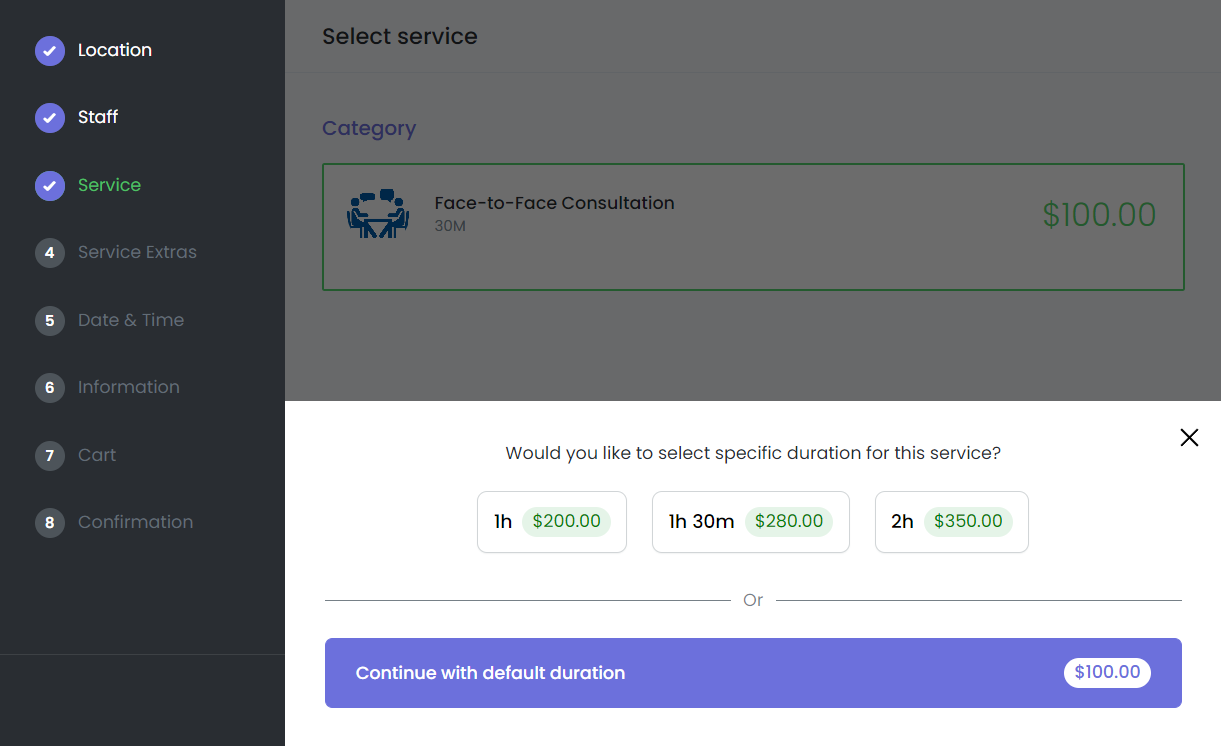
The Custom Duration feature allows you to offer multiple service durations with different prices for each duration. This feature enhances your service offerings by allowing customers to choose from a range of pre-defined durations, or continue with the default duration. You can also set specific deposit amounts and titles for each duration, which will be displayed in the booking form, providing clear options for your customers.
Enabling Custom Durations
To enable the Custom Duration feature, follow these steps:
-
Navigate to the Services Module: Go to the Services section in the admin panel.
-
Edit the Service: Click on Edit service for the service you want to customize.
-
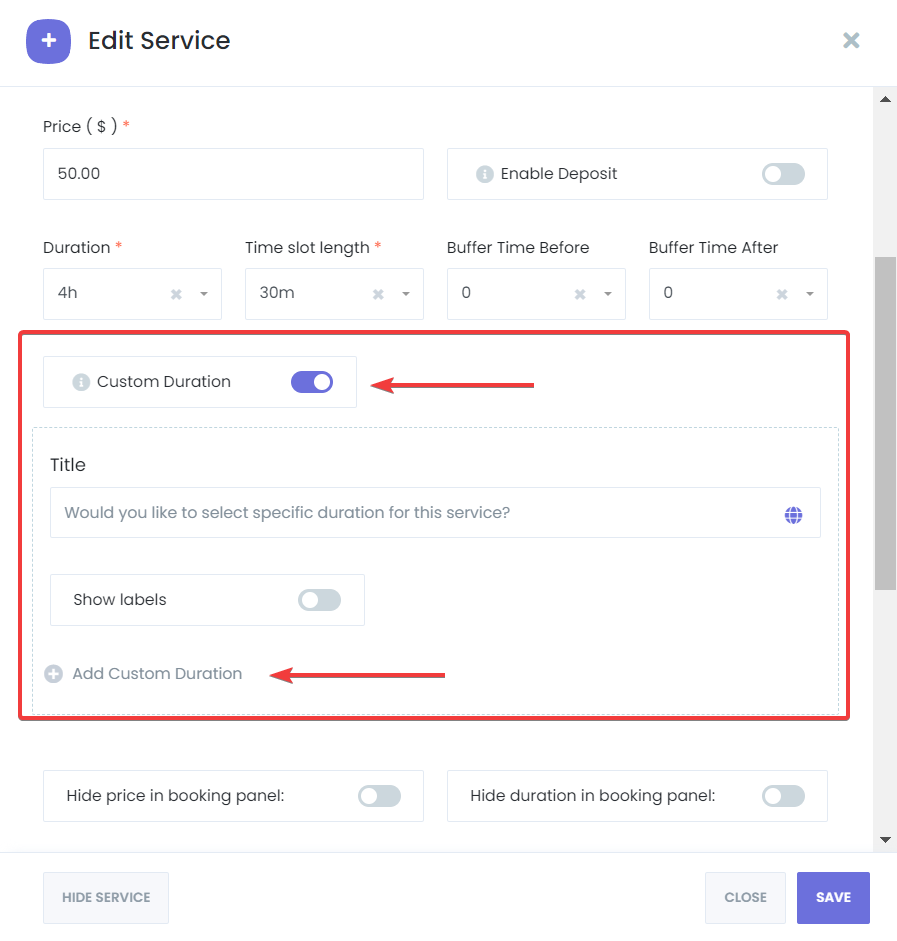
Enable Custom Duration: Toggle the Custom Duration option to activate this feature.
Adding Durations
Once the Custom Duration feature is enabled, you can add different durations for your service:
-
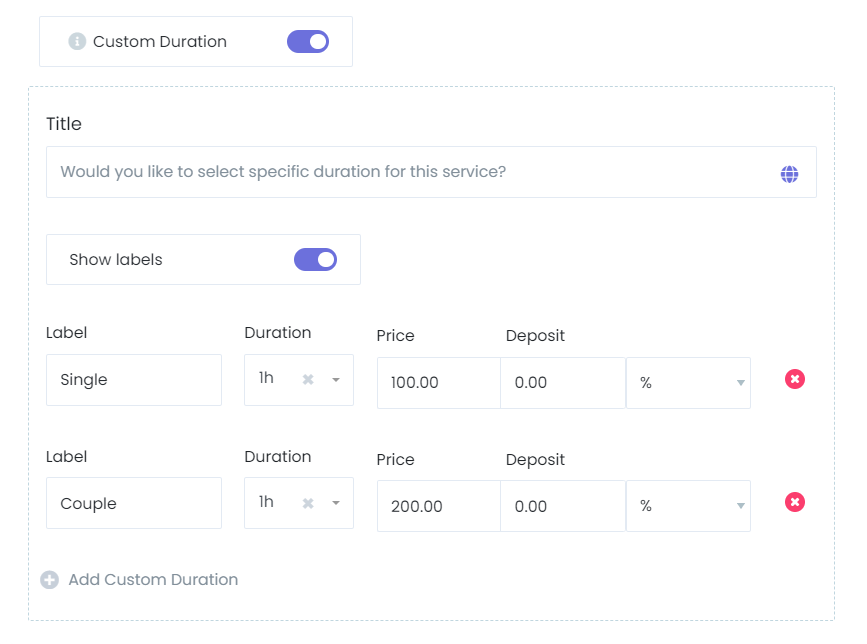
Add a Duration: On the service edit page, click on the Add duration button.
-
Specify Duration and Price: Enter the desired duration and set the price for that duration.
-
Set a Deposit Amount: If applicable, specify the deposit amount for the duration.
-
Add a Title: Set a title for each duration to clearly describe the option to your customers.
-
Repeat the Process: Continue adding multiple durations as needed by repeating these steps.
Setting Specific Prices Per Staff Member
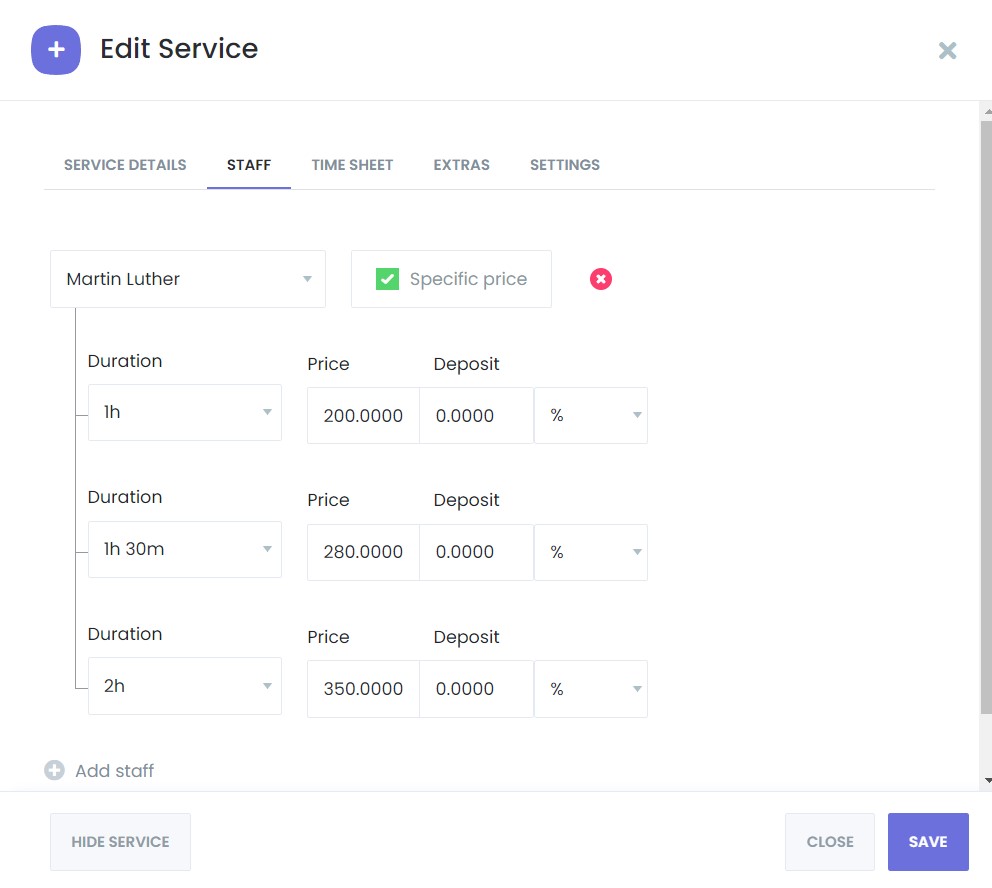
If your services have different prices depending on the staff member, you can set specific prices per duration for each staff member:
-
Navigate to the Staff Section: In the Services module, click on Staff to assign specific prices for the pre-defined durations.
-
Set Prices per Duration: Go to the pricing settings and set specific prices for each duration based on the staff member.
Customer Booking Experience
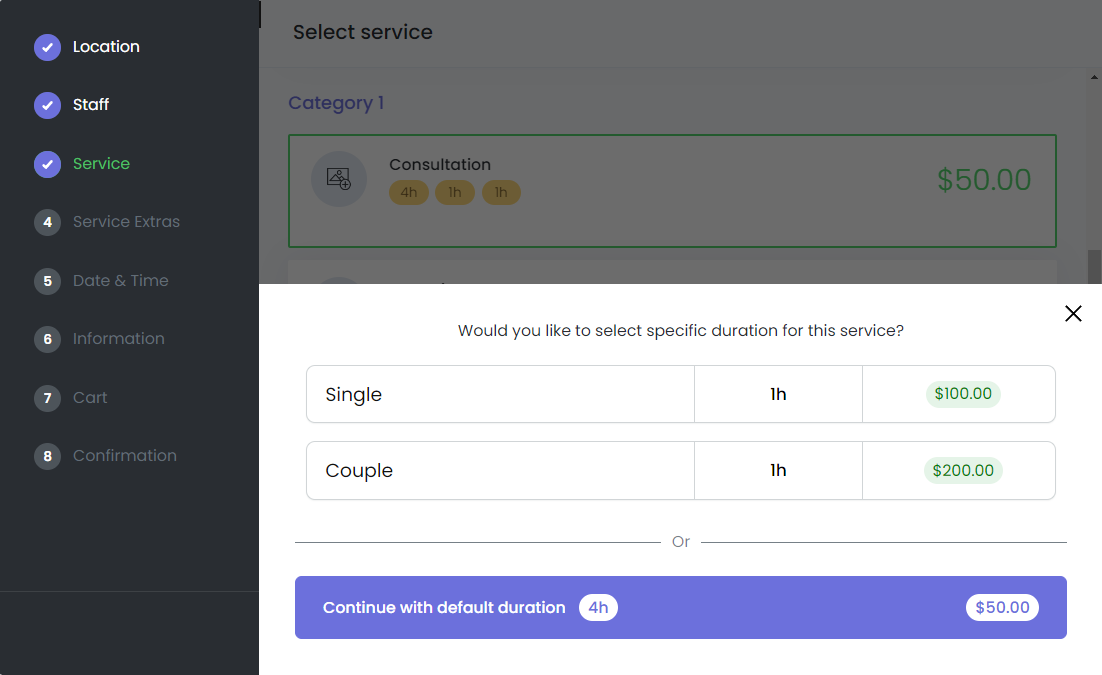
When customers select a service with multiple durations on the booking panel, they will see a popup displaying all available durations. The customer can then:
-
Choose from one of the pre-defined durations.
-
Continue with the default duration if they don't select any specific duration.
Example Scenario
For instance, if you run a spa offering massage services, you can set up different durations for the service, such as:
- 30-minute session
- 60-minute session
- 90-minute session
Each duration can have a different price, and you can also set different prices depending on the therapist providing the service.
Conclusion
By offering multiple durations with the Custom Duration feature in Mysched, you can provide more flexibility to your customers and better tailor your pricing based on the duration and staff member selected. This feature enhances the booking experience and helps you cater to a wider range of customer preferences.