Conditional Prices
Overview
The Conditional Prices feature in Mysched allows you to create dynamic pricing rules based on specific conditions. You can adjust appointment prices by offering discounts or adding extra charges depending on various factors such as service type, staff member, appointment date, and more.
Step 1: Creating a New Conditional Price Rule
-
Navigate to the Conditional Prices Section: In the Mysched admin dashboard, go to the Conditional Prices section.
-
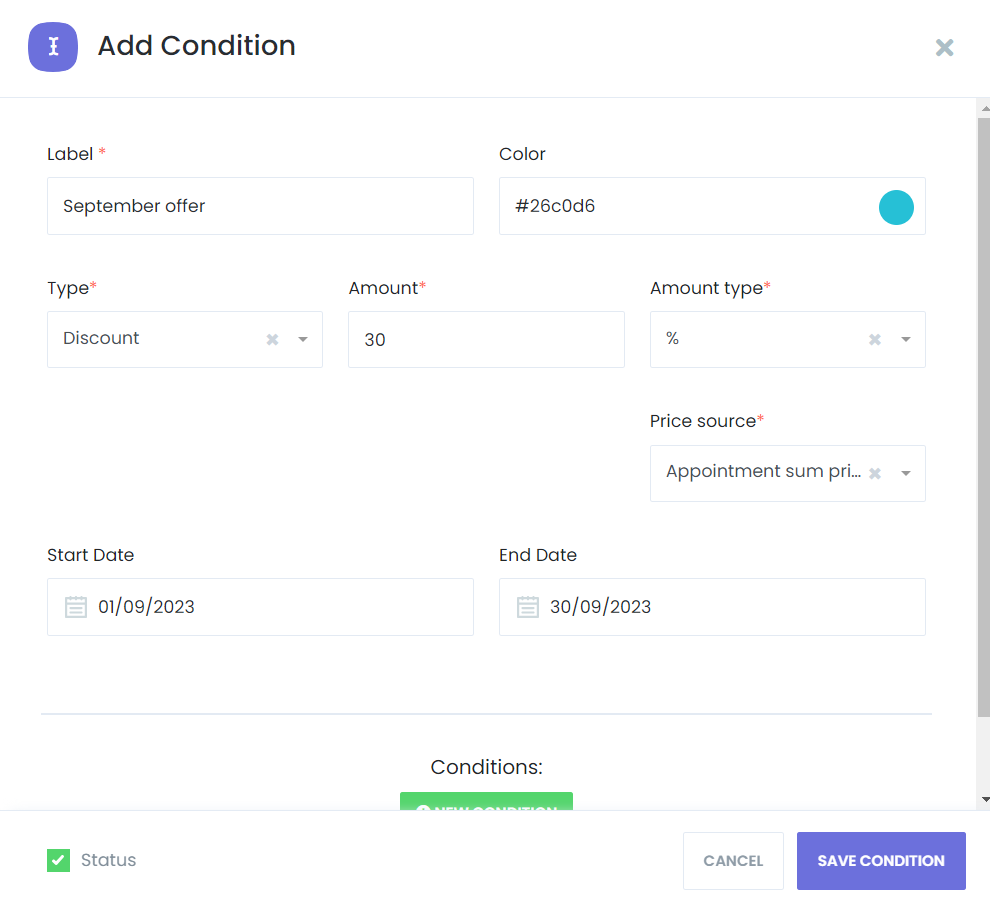
Add a New Condition: Click the + Add New Condition button to create a new conditional price rule.
-
Name the Rule: Enter a descriptive name for the rule so you can easily identify it later.
-
Select the Type of Conditional Price:
- Addition: Increase the price.
- Discount: Decrease the price.
-
Choose the Amount Type: Select whether the adjustment will be based on a Percentage or a Fixed Value.
-
Specify Campaign Duration: Optionally, set start and end dates for the pricing rule to define its duration.
Step 2: Defining the Conditions
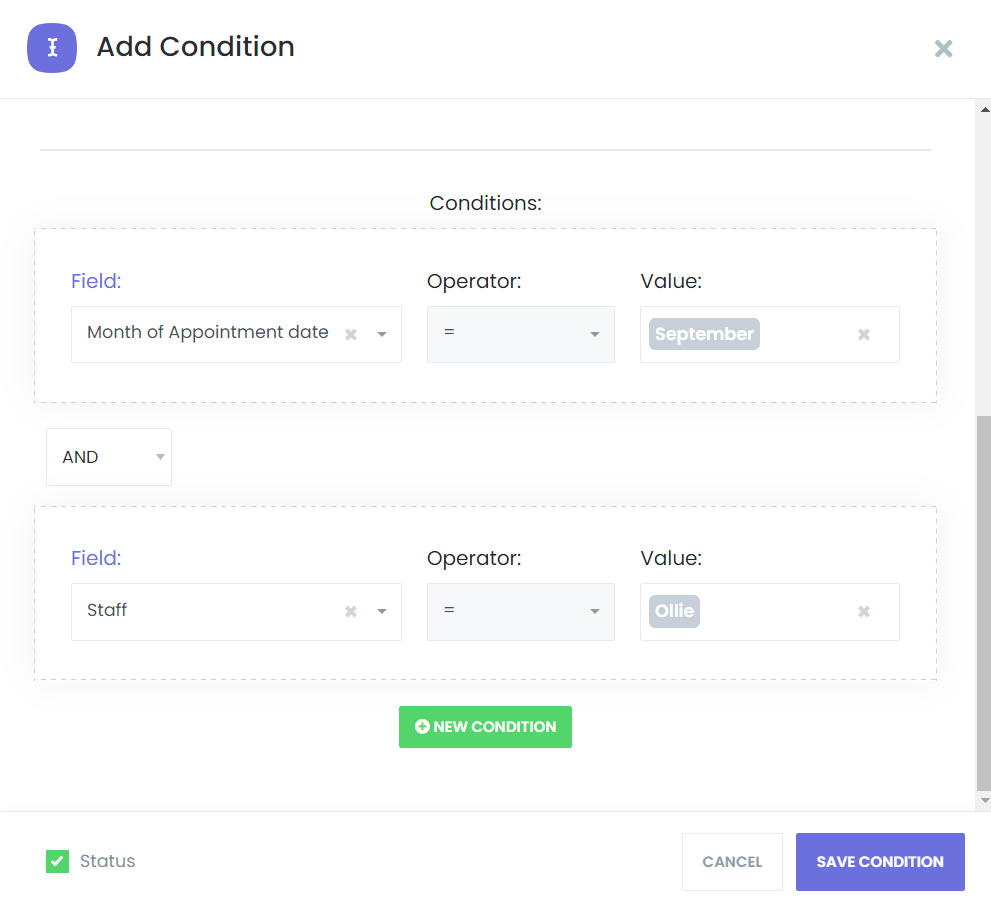
In the Conditions section, you can define the specific criteria that will trigger the price adjustment. Here are some examples:
- Service: Apply different prices to specific services, such as offering distinct rates for a "Basic Package" and a "Premium Package."
- Staff: Set pricing adjustments based on staff members, such as increasing the price for senior staff or specialists.
- Service Extra: Offer special pricing for customers who choose additional services or extras (e.g., a discount for adding a "Hot Stone Massage").
- Day of Appointment Date: Define rules for specific days (e.g., offering discounts on the 12th, 13th, and 14th of each month).
- Month of Appointment Date: Set conditions based on the month of the appointment (e.g., offer seasonal promotions during December).
- Weekday of Appointment Date: Adjust pricing based on weekdays (e.g., increase prices for weekend appointments).
- Payment Method: Offer different pricing based on payment methods (e.g., a discount for customers who pay with PayPal or credit card).
- Is Deposit Payment: Set prices based on whether the customer has made a deposit.
- Bring People Count: Adjust pricing based on the number of guests.
- Appointment Count: Offer loyalty discounts based on the number of previous appointments.
- Appointment Duration (min): Modify pricing for different appointment lengths (e.g., charge more for a 60-minute session compared to a 30-minute session).
- Appointment Start Time: Apply pricing rules based on the start time of the appointment (e.g., higher prices during peak hours).
- Appointment End Time: Adjust prices based on the appointment's end time (e.g., offer discounts for appointments that end before a certain time).
- Appointment Date: Set special prices for specific dates, such as public holidays.
- Custom Form Choices: Customize prices based on the selections made on custom forms (e.g., offering a discount if the client chooses a particular option).
You can combine these conditions to create unique and tailored pricing rules for your booking system.
Step 3: Setting the Pricing Adjustment
- Enter the Adjustment: In the Pricing Adjustment section, specify the percentage or fixed value by which you want to adjust the price.
- Review the Rule: Check the summary of the rule to ensure all conditions and adjustments are correctly set.
Step 4: Testing and Monitoring
Once the conditional price rule is active:
- Test the Rule: Make test appointments that meet the defined conditions to ensure the pricing adjustments are being applied correctly.
- Monitor Performance: Keep track of how the pricing rule is working during the booking process.
- Adjust as Necessary: If needed, make any adjustments to the rule or its conditions.
Conclusion
The Conditional Prices feature in Mysched allows you to tailor your pricing strategies with precision, offering flexibility to create unique rules that fit your business needs. Whether offering discounts for loyalty or increasing prices during peak times, this feature helps you optimize your pricing model.
If you have any questions or need further assistance, feel free to reach out to our support team.